How to Script a Calculator or Tool Demo Without a Mid-Video Slump
Learn how to script a calculator or tool demo around one job, timestamp each click, read the output aloud, and rewrite before a feature tour drains your retention.

10 min readUpdated
In this guide
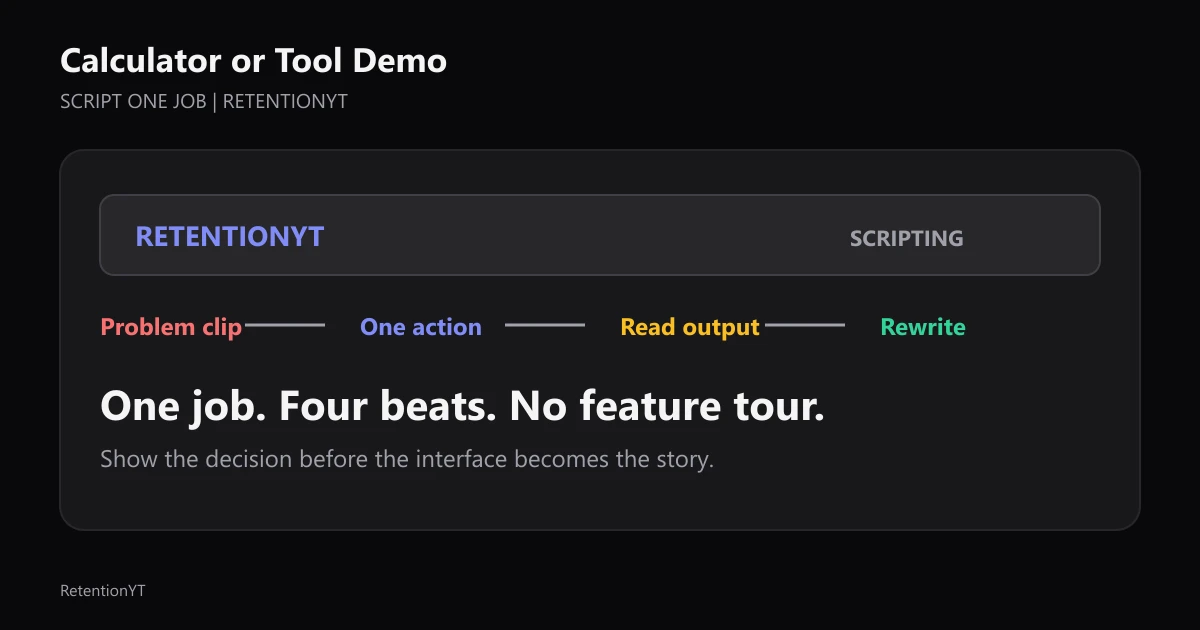
Give your demo one job: show a real problem clip, make one action in the tool, read the output aloud, and rewrite the line. Timestamp each click so your viewer always knows what changed. If the script needs four jobs, give those jobs four chapters or four videos. The mid-video slump is usually a tour that forgot its promise.

What How to Script a Calculator or Tool Demo Without a Mid-Video Slump actually is (and what it is not)
This method is a small production loop, not a product tour. You begin with the exact moment your viewer recognizes: a hook that sounds long, a calculation that feels opaque, or a sentence whose promise is hard to judge. Then you make one visible decision in the tool and turn its output into the next spoken line.
The manual version works with a text editor, a stopwatch, and YouTube Studio. A product can shorten the loop, but it should not become a prerequisite for understanding the method. If your screen recording only makes sense to someone who already knows the interface, the script has put the tool before the viewer.
These four numbers are the editorial shape of the method, not YouTube benchmarks. Use them as a pre-recording check: one job, four beats, one action that changes the answer, and no detour that asks the viewer to remember a feature instead of following the result.
| Feature tour | One-job demo |
|---|---|
| Opens with the product’s menu | Opens with the viewer’s problem clip |
| Shows several controls before a result | Makes one action that changes the draft |
| Explains what a button does | Reads the output aloud and interprets it |
| Ends when the feature list ends | Ends when the rewrite is visible |
Why this shows up in YouTube Studio
YouTube Studio gives you several different views, so start by naming the question you are asking. The locked SOURCE 1 page, checked in August 2026, describes the Reach tab as a snapshot of metrics such as click-through rate, watch time, and views, and gives the computer path through Content, a selected video, Analytics, and Reach. It also notes that some reports may not be available on mobile devices. Use that page for reach context, not as proof that a particular line caused a drop.
For channel-level context, SOURCE 2, checked in August 2026, says the Content tab shows how your audience finds content, what it watches, and how it interacts with it. The page also describes Key moments for audience retention for videos and says typical retention can compare the ten latest videos of similar length. That is the useful distinction: first inspect the moment, then decide what the script should change.

Use the curve as a place to inspect, not as a diagnosis by itself. Match the timestamp to your script, then mark the first sentence that stopped serving the promised job.
Worked example 1: the failure
Suppose your draft begins with a hook that says, “This calculator can score your title, estimate the risk, compare three options, suggest a new hook, and check the description.” The viewer has not yet seen the original problem. The script has offered a catalogue before it has earned attention.
Here is an illustrative example, not a YouTube benchmark. The numbers are timestamps from a planned screen recording, used to expose the failure mode rather than to claim a typical audience response.
| Timestamp | What the recording shows | What the voice says | Why the beat fails |
|---|---|---|---|
| 0:00–0:12 | Dashboard and three tabs | “We are going to look at everything.” | No problem clip or single promise |
| 0:12–0:28 | Title score, history, settings | “This is another useful option.” | The cursor changes subject |
| 0:28–0:44 | A second calculator | “You can also compare these.” | No output has been interpreted |
| 0:44–0:58 | First draft returns | “We will fix this later.” | The payoff is postponed |
The failure is not that the software has too many capabilities. The failure is that the script makes the viewer carry the product map in their head. Each new tab asks for context, but none of the clicks changes the line they came to improve.
Rewrite the failure in production language: the opening has one problem but four unconnected actions. That gives you a clean cut list. Keep the problem clip, choose the action that produces the most useful decision, and remove the rest from this video.
A rule of thumb: every click should answer what is wrong, what evidence shows it, or what changes next. Otherwise, save it for another job.
Worked example 2: the fix
Keep the same rough hook, but narrow it to one decision: “This first sentence sounds like a feature tour. I will paste it into the review, read the risk, and rewrite only the line that delays the payoff.” Now the viewer can predict the shape of the next minute.
Start with the problem clip. Leave the original sentence on screen long enough for the viewer to recognize the delay. Then timestamp the action before you record: at 0:18, paste the sentence; at 0:25, open the risk output; at 0:34, read the output aloud; at 0:45, rewrite the line.
Read the output aloud instead of pointing at a warning: “The risk is not the word count; it is that the promise arrives after the tour.” Then write the shorter line and show the removed detour.

The loop also works without RetentionYT: paste the line into a text editor, read it aloud, mark the setup, and write a shorter promise. RetentionYT can gather the review step, but the editorial decision remains yours.
How to check this in YouTube Studio (step by step)
Use YouTube Studio after the upload has enough viewing context to inspect the actual moments, not to certify a hypothetical script. First write down the timestamp you are checking. Then compare that moment with the words, cursor movement, and visual change in your recording.
For a selected video’s reach context, open Studio, select Content, choose the video, open Analytics, and select Reach. That path is stated on SOURCE 1. For a channel-level content view, open Analytics from the left menu and choose Content from the top menu, as SOURCE 2 describes. Keep those scopes separate in your notes.
For a video retention check, look for Key moments for audience retention when the report is available. The report is a place to inspect how different moments held attention; it is not a replacement for reading the script. If you compare videos, remember that the source describes typical retention against the ten latest videos of similar length, so record what comparison you used rather than calling it a universal benchmark.

Use this four-line check after you watch the recording:
- Problem: Can I point to the exact clip or sentence the viewer is meant to fix?
- Action: Does the cursor make one meaningful change rather than tour the interface?
- Output: Do I read the result aloud and translate it into a decision?
- Rewrite: Is the improved line visible before I introduce another capability?
If the answer to one line is no, repair the script before you blame the graph. You are looking for a mismatch between the promise and the edit: a delayed result, an unexplained click, or a second job hiding inside the first.
The trap
The trap is a polished feature tour that feels productive while you record it. The screen changes constantly, the voice keeps saying “also,” and the viewer still cannot repeat the one decision the video was supposed to teach.
The trap
The move

Watch for four verbal signals in your draft: “and another thing,” “while we are here,” “you can also,” and “we will come back to that.” They are not forbidden words; they are prompts to ask whether the script has changed jobs. If it has, cut the branch or label a new chapter with a new promise.
Narrating the interface is another trap. “Click Review so we can see whether the line hides the payoff” gives the click a reason; “click the blue button” does not.
What to do in the next upload
Choose one real line from the next upload and build the screen recording around its decision. Draft the spoken lines before opening the tool, because an open interface will tempt you to add features that were never part of the promise.
- Clip the exact problem sentence or calculation before the tool appears.
- Write one job in one sentence: “I am checking whether ___.”
- Timestamp every click that changes the answer.
- Remove navigation that only proves the interface exists.
- Read the output aloud instead of pointing at it.
- Rewrite the original line on screen and show what changed.
- Check the uploaded video’s available retention report in Studio.
- Save every second job for a separate chapter or video.
- Link the script review tool only where it shortens the review loop.
- Use How to Script a YouTube Video That Keeps Viewers Watching and the YouTube script outline template when the single-job demo needs a larger structure.
Read the four beats without the product name. If the story collapses, rewrite the promise until the four beats stand on their own.
After publishing, do not turn one graph inspection into a grand theory. Note the timestamp, rewatch the exact section, and make one script change for the next upload. The practical win is not a longer demo; it is a clearer decision delivered before the viewer has to ask why the screen changed.
Make the tool answer one question before you let it ask the viewer to follow another.
That is the complete loop: problem clip, one action, spoken output, rewrite, stop. Your next calculator or tool demo does not need a feature tour to feel useful. It needs a promise the viewer can see you keep.
Frequently asked questions
- Why do software demos lose viewers?
- Software demos lose viewers when the viewer cannot tell what job the next click serves. A tour adds menus, settings, and side features before the promised result appears. Give the demo one visible problem, make one action in the tool, read the output aloud, and move straight to the rewrite. The structure keeps the viewer oriented.
- How long should a tool demo be?
- Make a tool demo as long as the single job requires, not as long as the product has features. A practical rule of thumb is to outline the problem, one action, output, and rewrite before recording. If a second job needs its own setup and payoff, make it a separate chapter or video instead of stretching the first one.
- Should I show every feature?
- No. Show the smallest feature set that completes the promised job. Every extra panel creates a new explanation burden and competes with the result your viewer came to see. Put optional features in a later chapter, a follow-up video, or a clearly labelled note. The main demo should earn its next click by solving one problem visibly.
- How do I script clicks?
- Write each click as a timed action with a reason and a spoken line. For example: at 0:18, paste the hook; at 0:24, open the risk result; at 0:34, read the warning; at 0:45, rewrite the sentence. Record only the actions that change the answer, and cut navigation that does not help the viewer decide.
- Can I demo RetentionYT this way?
- Yes, and the manual method should still make sense without signing up. Start with a real line from your draft, explain the risk you are checking, use one RetentionYT action to shorten the review loop, read the output aloud, and rewrite the line on screen. Link the product once where it naturally supports that workflow, not after every step.
- How do I apply “How to Script a Calculator or Tool Demo Without a Mid-Video Slump” on my next upload?
- Choose one sentence, calculation, or tool decision from the next upload. Write the problem clip, one action, spoken output, and rewrite as four beats before you open the recorder. Add a timestamp to every click, remove feature-tour detours, and check the finished upload in YouTube Studio so the next script is based on the moment viewers actually stopped watching.
- Where in YouTube Studio do I check “How to Script a Calculator or Tool Demo Without a Mid-Video Slump”?
- For a channel-level performance view, sign in to YouTube Studio, open Analytics from the left menu, and select Content from the top menu. For a selected video’s reach reports, open Content, choose the video, select Analytics, and choose Reach. For retention moments, use the video’s Key moments for audience retention report when it is available.
- What is the most common mistake with “How to Script a Calculator or Tool Demo Without a Mid-Video Slump”?
- The common mistake is treating the tool as the subject instead of treating the viewer’s decision as the subject. The script starts naming features, the cursor wanders, and the payoff arrives late. Replace the tour with one problem clip, one meaningful action, a spoken readout, and a rewrite. If another feature needs a new promise, cut it.
Give your next script a second look
Paste a script into RetentionYT for suggestions on your hook, pacing, and structure. Choose the edits that serve your video, then check audience behavior in YouTube Analytics after publishing.
Get retention tips in your inbox
Occasional, practical emails on hooks, pacing, and retention. No spam.
Related posts
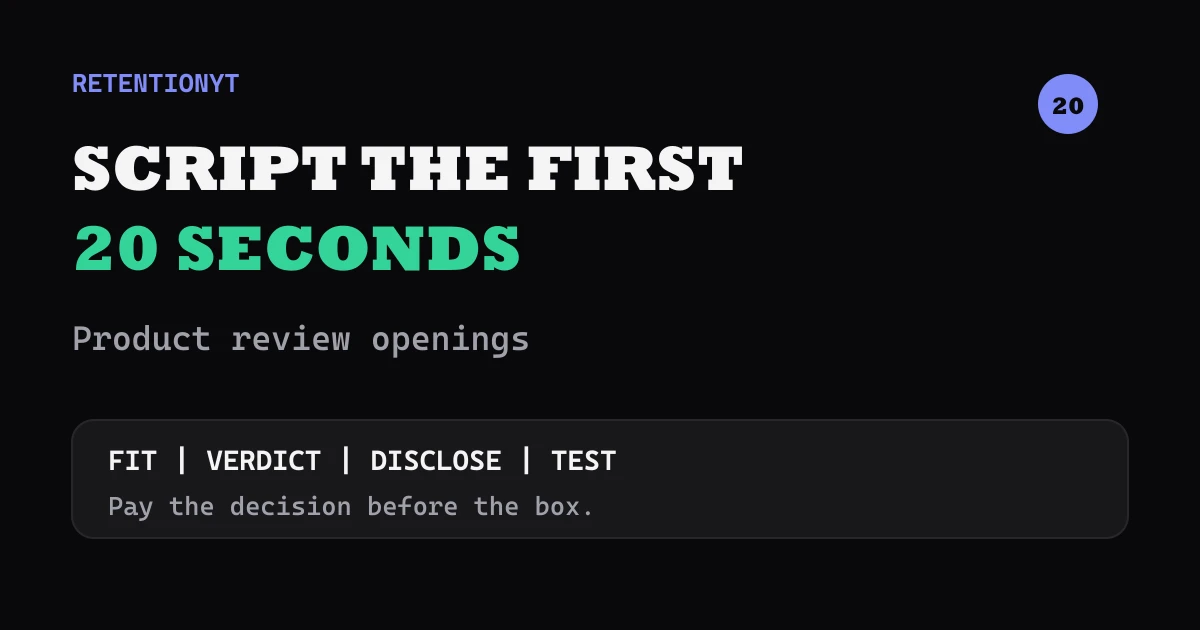
How to Script a Product Review's First 20 Seconds
Learn how to script a YouTube product review intro that pays off the thumbnail in 20 seconds with a verdict teaser, audience fit, disclosure, and a testable before-and-after.
Shorts to Long-Form Bridge Script
Turn a YouTube Short into a long video script without padding: keep the loop, add the mechanism, prove it with two examples, and finish with a useful next step.
Silence as a Scripted Beat
Use a written 1.2-second silence after a number to reset a talking head, expose the next idea, and give a faceless edit a clear graph hold without inventing a promise.