Callback from 0:07 at Minute 6
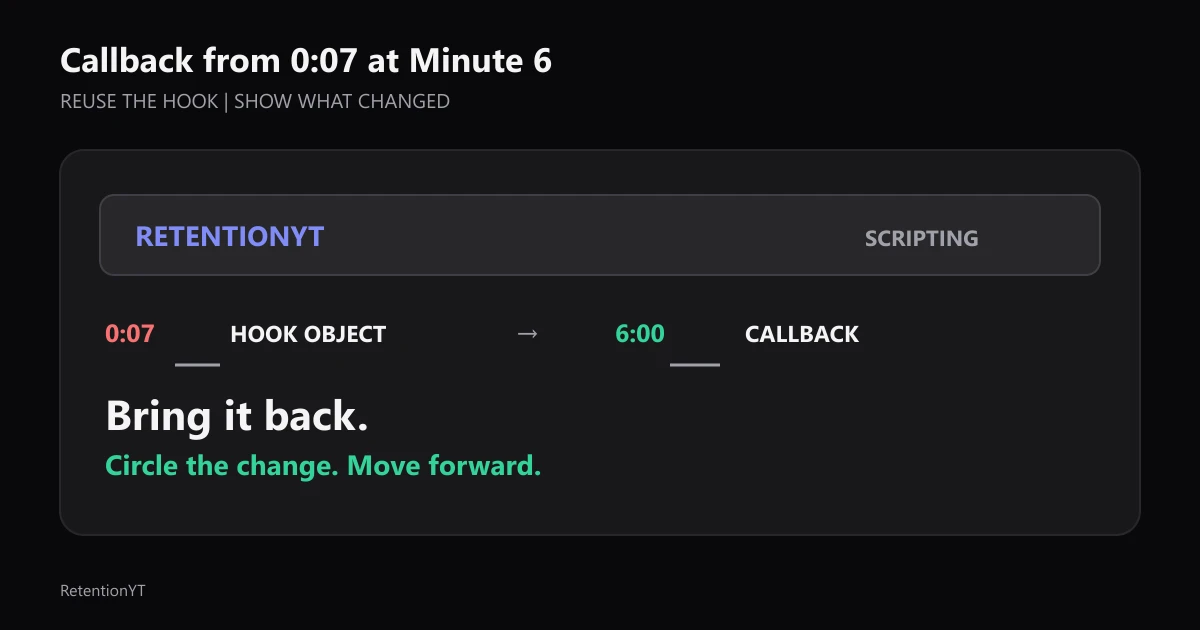
Use the object or phrase from your 0:07 hook again at minute 6, circle what changed, and write the callback into the outline before the edit buries it.

10 min readUpdated
In this guide
Bring back the object or phrase from your 0:07 hook at minute 6. If the hook was a printed cliff, hold it up again with the dip circled. That callback is a rehook that costs one sentence. The viewer who stayed sees the promise return; the viewer who drifted gets a fresh place to re-enter. Write it into the outline or the edit will bury it.

What Callback from 0 actually is (and what it is not)
A callback is a planned return to a hook element. The element can be a printed graph, a phrase on a card, a before screenshot, a sound cue, or a question you wrote on the first frame. When it returns, it must do a new job: show the change, interpret the evidence, or point to the next decision.
It is not a “previously on” montage. A recap repeats a sequence; a callback makes one familiar item return with a delta: circle the dip, replace the number, cross out the old line, or reveal the answer beside the original question.
It is not a promise that every viewer will return. Treat it as a craft choice that makes the structure easier to follow. The manual method works with a page, screenshot, or spoken phrase; a tool may shorten the review loop but is not required.
These are illustrative production controls, not YouTube benchmarks. Put them in your outline so the return has a location, an object, and a reason. If you cannot name the visible change, you have a repeat shot, not a callback.
| Callback | Recap |
|---|---|
| Reuses one hook object or phrase | Repeats several earlier points |
| Adds a new mark, result, or meaning | Summarizes what already happened |
| Costs one focused sentence | Can become a long interruption |
| Points into the next decision | Often closes the previous section |
Why this shows up in YouTube Studio
Use Studio to locate the moment you want to improve. The locked SOURCE 1, checked in August 2026, describes the Reach tab as a snapshot of click-through rate, watch time, and views. Its computer path is Content, selected video, Analytics, then Reach; some reports may not be available on mobile devices.
For retention-specific context, SOURCE 2, checked in August 2026, says the Key moments for audience retention report shows how well different moments held viewers’ attention. It also says typical retention can compare your 10 latest videos of similar length. Use those statements to choose what to inspect; do not turn an illustrative curve into platform data.

Worked example 1: the failure
Imagine a tutorial that opens at 0:07 with a printed graph. The narrator says, “This dip is the reason the first rehook is losing people.” The paper disappears, and the video moves through setup, definitions, and a tool screen. At minute 6, the tutorial reaches the rehook but never shows the graph again.
The example below is illustrative. These are planned edit timestamps, not measured viewer behavior or a published retention benchmark.
| Timecode | Screen and voice | Callback problem |
|---|---|---|
| 0:07 | Printed graph; the dip is mentioned | The object is introduced with a clear job |
| 2:10 | Tool screen and explanation | The hook object disappears from the viewer’s memory |
| 4:30 | New example appears | The lesson changes subject without a bridge |
| 6:00 | Narrator says “now let’s revisit it” | No graph, mark, or new evidence returns |
The failure is that “revisit it” names a promise the edit does not fulfill. Under 6:00, write the object, the new mark, and the line: “This is the dip from 0:07; the circled section is the line we just rebuilt.”
Worked example 2: the fix
Keep the opening graph, but make its return part of the promise. At 0:07, frame the printed page so the dip is visible. In the outline, reserve 6:00 for the return. At that point, hold up the same page, circle the dip, and place the revised line beside the original.
The callback sentence should be short: “At 0:07, this dip was the problem. Now the circled section shows the line we changed.” The next shot must prove the sentence by showing the rewrite, not by opening a new menu or launching a separate explanation.
Use three beats: recognize the object, name the delta, move forward. Put any extra explanation after the proof. The callback earns its space by making previous work visible and the next step predictable.

It works for a faceless edit too: reuse the same screenshot crop, card, diagram, or sound cue, then annotate why it returned.
A manual callback needs no sign-up: save the first frame, write the return sentence, and add the changed mark in your editor. If you want a structured review step, RetentionYT can sit beside the manual method, but the callback still needs a human decision about what changed.
How to check this in YouTube Studio (step by step)
Open YouTube Studio with one timestamp in mind. You are not checking whether callbacks are universally rewarded; you are checking whether your own edit made the promised return understandable at the selected moment.
For a selected video’s Reach reports, follow the computer path stated on SOURCE 1: sign in, open Content, choose the video, select Analytics, and select Reach. For retention, use the video’s Key moments for audience retention report when available. SOURCE 2 describes that report as showing how well different moments held attention and says typical retention can compare the 10 latest videos of similar length.

Use this four-question review after you watch the timestamp:
- Recognition: Can you identify the same object or phrase from 0:07?
- Delta: Is the new mark, number, answer, or correction visible?
- Narration: Does one sentence explain why the object is back?
- Direction: Does the callback point into the next section rather than stall the video?
If recognition fails, reuse the original crop, wording, sound, or framing. If the delta fails, annotate the returned object. If narration fails, write a sentence a viewer can understand without your private outline. If direction fails, cut the callback or move the next step immediately after it.
Name the timestamp and edit choice: “At 6:00, the graph returns, the dip is circled, and the revised line appears on the right.” That is actionable; “the callback felt weak” is not.
The trap
The trap is decorative repetition. You bring back the same object because it looks satisfying, but you do not tell the viewer what changed. The callback becomes a pause between sections instead of a bridge from the hook to the next piece of evidence.
The trap
The move

Watch for “as I mentioned earlier,” “let’s go back to that,” and “remember this?” They prompt you to check whether the returned object has a new job or whether the edit should show the memory instead.
Avoid over-explaining. One sentence can identify the old moment and new evidence; if you need a paragraph, strengthen the annotation first.
What to do in the next upload
Choose the callback before filming. Put it in the outline as a shot, a time target, a visible change, and a spoken line. That small instruction protects it from the natural edit pressure to remove anything that looks like a repeat.
- Pick one object, phrase, question, or sound cue from the first 8 seconds.
- Write its original timestamp, such as 0:07, beside the hook line.
- Choose a callback target and label the time as illustrative until the edit is locked.
- Decide the delta: circle, replace, cross out, compare, or reveal.
- Write one sentence that explains why the item returns.
- Reuse the original crop, wording, or sound so recognition is immediate.
- Put the new evidence directly after the callback.
- Check the timestamp in Studio’s available retention report after publishing.
- Use the script review tool to review the rehook wording, not to replace the edit decision.
- Use How to Script a YouTube Video That Keeps Viewers Watching and the YouTube script outline template for the larger hook and outline around this callback.
A callback can reward attention by returning a recognizable item with new information. It can also help a drifting viewer re-enter by naming the old promise and showing where the lesson is now. Those are craft goals, not platform guarantees.
Before export, watch the callback with sound on and off. The sentence should explain the delta, while the crop and annotation should show new work without sound.
Bring back the hook only when you can show what it means now.
The clean version is simple: plant the object at 0:07, bring it back at minute 6, circle what changed, and move forward. Put the line in the outline before the edit.
Frequently asked questions
- What is a callback in a YouTube script?
- A callback is a deliberate return to an object, phrase, question, or image from your hook. You bring it back later with new information, such as circling the dip on the printed graph you showed at 0:07. It is not a recap of everything so far; it is a short rehook that makes the earlier promise useful again.
- When should I call back the hook?
- Call back the hook when the viewer needs a fresh reason to orient, not because a timer says the moment is mandatory. A practical rule of thumb is to plan the first callback around the point where the next section changes the question. In a six-minute example, that can be 6:00, provided the object returns with a visible change.
- Is this the same as closing a loop?
- They overlap, but they are not identical. Closing a loop answers an open question or pays off a promised detail. A callback reuses the hook’s object or phrase so the viewer feels the connection. A callback can close a loop, open a sharper one, or simply re-orient the viewer before the next piece of work.
- Can faceless channels callback?
- Yes. A faceless channel can bring back a screenshot, cursor path, sound cue, diagram, product close-up, or exact phrase. Keep the same identifying shape and add one change: circle the new dip, cross out the old assumption, or place the updated number beside the original. The callback lives in the edit and script, not in a presenter’s face.
- Example in a tutorial?
- At 0:07, show a printed retention graph with a dip at the first rehook. At 6:00, hold up the same graph, circle the dip, and say, “This is the moment we just fixed.” Then show the revised line and continue. The object gives the tutorial a physical before-and-after instead of another abstract reminder.
- How do I apply “Callback from 0” on my next upload?
- Choose one hook object or phrase before you record. Put its return in the outline with a time target, a visible change, and one sentence of narration. At the edit, reuse the same shot or wording, add the new mark, and cut any recap that does not move the decision forward. Check the finished moment in Studio after publishing.
- Where in YouTube Studio do I check “Callback from 0”?
- For video retention, use the Key moments for audience retention report when it is available. To reach a selected video’s Reach reports, sign in to YouTube Studio, open Content, choose the video, select Analytics, and choose Reach. For channel-level content context, open Analytics and then Content. The exact source paths are recorded in the article’s research file.
- What is the most common mistake with “Callback from 0”?
- The most common mistake is bringing back the object without changing its meaning. Showing the same graph again, with the same voiceover, feels like filler. Circle the new evidence, name what the viewer should notice, and connect it to the hook’s promise. A callback needs a delta: something is clearer, corrected, or ready to pay off.
Give your next script a second look
Paste a script into RetentionYT for suggestions on your hook, pacing, and structure. Choose the edits that serve your video, then check audience behavior in YouTube Analytics after publishing.
Get retention tips in your inbox
Occasional, practical emails on hooks, pacing, and retention. No spam.
Related posts
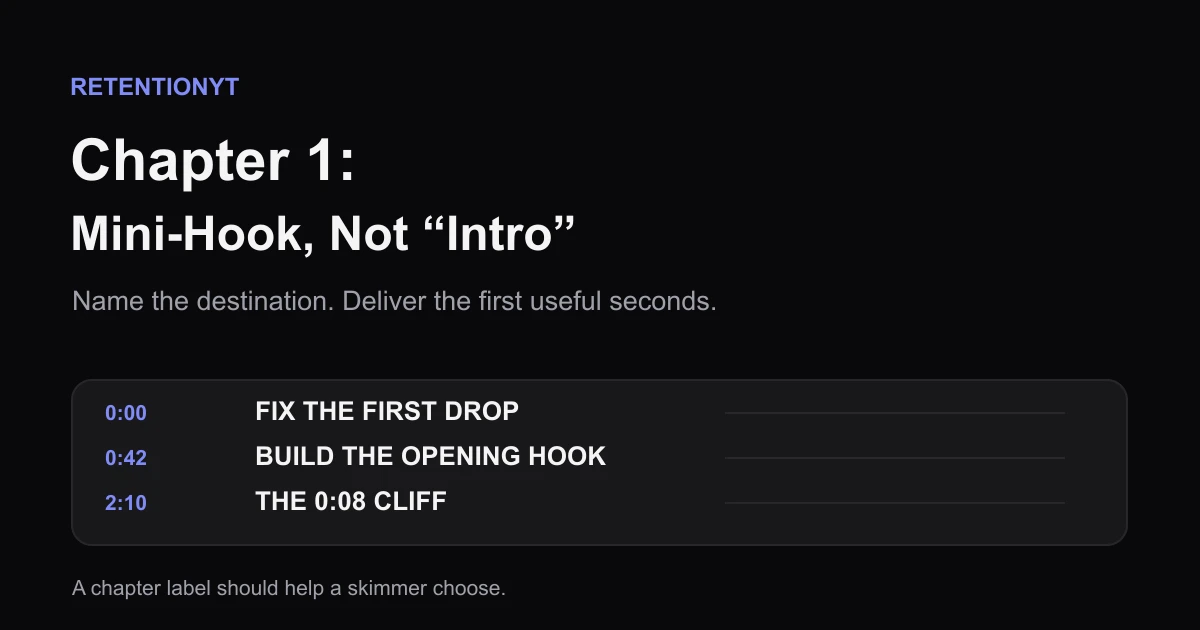
Chapter 1 Title as a Mini-Hook, Not 'Intro'
Replace a skippable YouTube chapter 1 label with a four-to-six-word promise, then use the timestamp and opening seconds to deliver what the viewer expects.
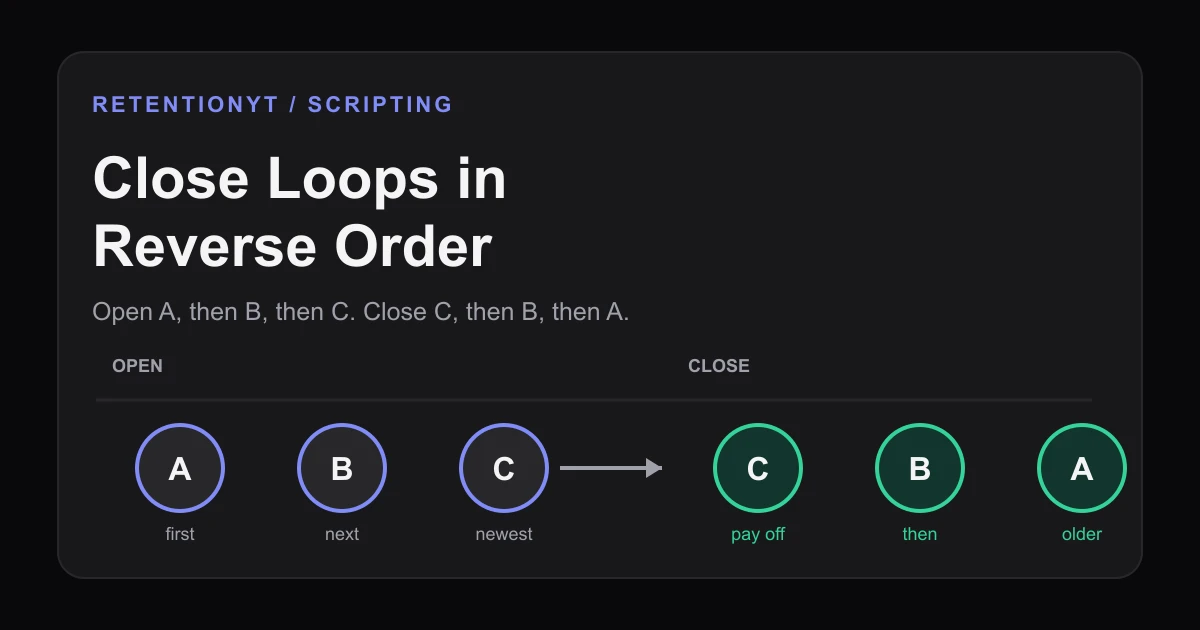
Close Loops in Reverse Order
Learn the order to close open loops in a YouTube script: pay off the last tease first, with timestamps, examples, and a Studio check for creators.
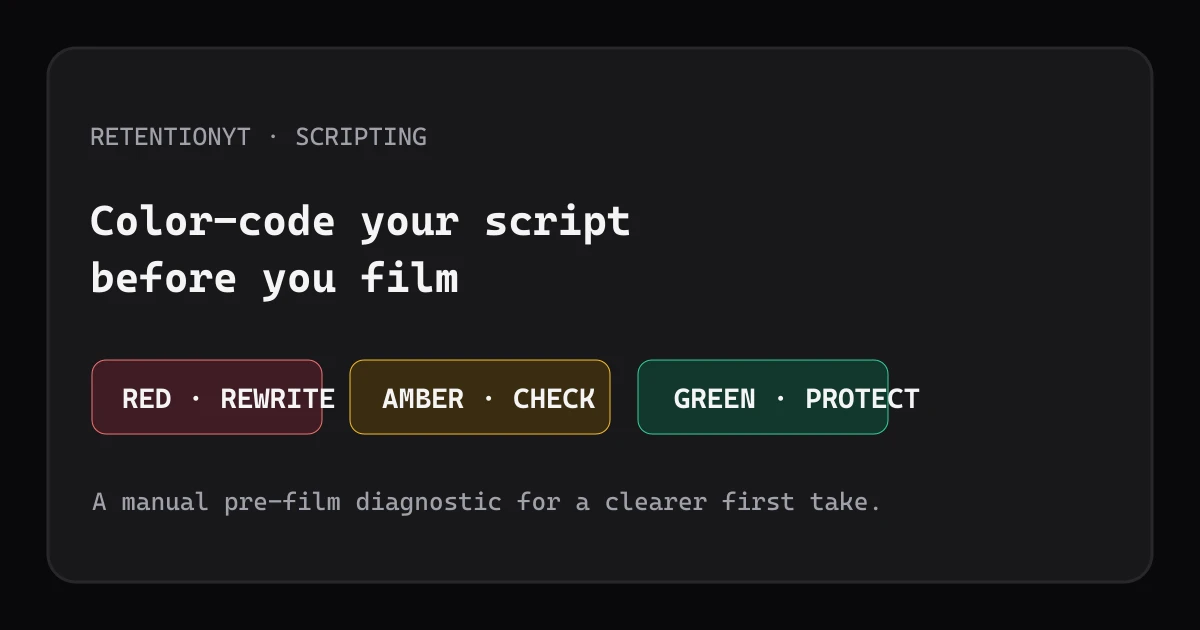
Color-Code a Script by Retention Risk Before You Film
Use a three-color script audit to catch weak opening promises, delayed payoffs, and vague lines before filming your next YouTube video upload.