How to Cut a Script from the Graph (A Cut List)
Edit your YouTube script using the retention graph: export the dip, map it to the exact line, then mark CUT, REWRITE, or MOVE without guessing.

11 min readUpdated
In this guide
If you have one retention graph and one transcript, you already have enough to make a useful cut list. Start with a timestamp, map it to the exact spoken line, then choose CUT, REWRITE, or MOVE. Do not cut a spike because it looks unusual, and do not treat every dip as a verdict. The graph tells you where to inspect; the script tells you what to change.

What How to Cut a Script from the Graph (A Cut List) actually is (and what it is not)
A cut list is a timestamped edit decision list: a small table that joins a moment on your retention graph to the exact transcript line and the action you will take. The minimum useful row has five parts: time, line, evidence, diagnosis, and action. “The middle feels slow” is a feeling; “00:18, line 14, viewers leave during a repeated setup, CUT” is a testable edit note.
The graph is useful because it gives your review a location. It does not explain the sentence, the visual, the promise, or the joke at that location. Your transcript supplies that missing context. When you line up the two, you can decide whether the problem is excess wording, a late payoff, a misplaced explanation, or a moment that should stay because it is doing important work.
YouTube’s SOURCE 1 page is currently a Reach page. It supports the Analytics route and the relationship between impressions, views, and watch time; retention-specific guidance below is separately sourced or labelled as method.
| Graph moment or evidence | What to read in the transcript | Action label | First question |
|---|---|---|---|
| Meaningful dip | The line, setup, visual, and promise immediately before it | CUT or REWRITE | Is the viewer paying for repeated or unclear information? |
| Spike or rewatch signal | The line that earned extra attention and the setup that led to it | KEEP or MOVE | Can the useful idea arrive earlier without killing the payoff? |
| Flat stretch | The section that is holding steady | KEEP or tighten | Is the line doing necessary work at the right pace? |
| Gradual decline | The sequence of beats across the section | REWRITE or MOVE | Does the section need a clearer promise or faster progression? |
Treat the shape as a locator, not a command. A dip says inspect here; a spike says understand what worked.
Where RetentionYT fits
Manual method works alone. Product shortens the loop. RetentionYT can shorten the repeated mapping and review process after you have chosen the line-level question.
Why this shows up in YouTube Studio
YouTube’s current performance documentation says the Content tab gives a channel-level overview of what your audience watches and how it interacts with your content. It also lists key moments for audience retention under video analytics and says typical retention can compare your 10 latest videos of similar length. That is enough context to use the graph as a comparison and diagnosis tool without inventing a universal “good” number.
The current Studio workflow is a rule of thumb: open Analytics, select the video-level retention report, and find the timestamp you want to inspect. YouTube’s SOURCE 2 page says the retention report shows how different moments held viewers’ attention and that expanded reports can help you compare performance and export data. Record the date, report name, and selected video beside your screenshot.
Do not confuse a graph location with a cause. Read the sentence, visual beat, topic change, and promise around it before choosing an edit.
Retention data may take time to process. Use a settled report, or label an early cut list provisional and update it if the graph changes.

Worked example 1: the failure
Suppose an illustrative 8-minute upload has a dip at 00:18, a spike at 00:42, and another dip at 02:10. The transcript shows a repeated definition at 00:18, a concrete example at 00:42, and a long aside at 02:10. These timestamps and viewer counts are illustrative, not YouTube data; the point is the mapping method.
The failure is to see the first dip and cut the next 20 seconds without reading the script. That can delete setup while leaving the repeated definition. Cutting a spike makes the same mistake in reverse.
| Illustrative timestamp | Transcript evidence | Bad decision | Why it fails |
|---|---|---|---|
| 00:18 | Repeated definition, lines 9–11 | CUT the next 20 seconds | It cuts context instead of the repeated wording. |
| 00:42 | Concrete example, lines 19–24 | CUT the spike | It deletes the moment that earned attention. |
| 02:10 | Unrelated aside, lines 61–72 | Leave it alone | It ignores a line-level candidate because the section feels familiar. |
The bad list uses the graph as a red pen and records only “bad section.” For a joke or example, read setup and payoff separately so you do not cut the part that earned attention.

Worked example 2: the fix
Use the same illustrative upload, but rewrite the review sheet. At 00:18, mark REWRITE and quote the repeated line. At 00:42, mark KEEP and note that the concrete example created the spike. At 02:10, mark MOVE and place the aside after the main promise has been delivered. Every row now has a bounded action and a reason another editor can inspect.
Do not chase a perfect curve. Make the edit smaller and explainable: rewrite wording, move order, or cut repeated, delayed, or unrelated material.
For the next upload, shorten the opening definition, bring the example earlier, or move the aside after the first payoff. Change one scripting variable at a time and version the cut list.

How to check this in YouTube Studio (step by step)
-
Save the transcript. Keep the exact words, line breaks, and timestamps used in the edit. Save both versions if the transcript changed.
-
Choose the video and report. Open YouTube Studio, then choose the current video-level Audience retention report. The exact tab names can move; use the report that shows the video’s retention shape and record the date.
-
Wait for a usable report. Retention data can take 1–2 days to process. If you work earlier, label the list provisional and revisit it once the report has settled.
-
Capture the graph. Export or screenshot the view with 00:00, the reviewed moment, and its surrounding shape visible.
-
Mark moments, not every pixel. Start with meaningful dips, spikes, or changes of shape. A dense list of every tiny movement creates activity without a decision.
-
Map time to lines. Find the exact sentence, visual beat, and transition at the timestamp. If the graph time and transcript time do not align, document the offset instead of forcing a false match.
-
Write one diagnosis. Use concrete language such as repeated wording, late payoff, topic jump, slow setup, or misplaced detail.
-
Choose one action. Mark CUT, REWRITE, or MOVE. You may add KEEP for a spike or a strong section, but do not hide the required action labels under vague notes like “fix pacing.”
-
Review the surrounding shape. Check several seconds before and after the moment. An isolated movement can mean something different from a long decline or a recovery spike.
-
Export the handoff. Give the editor the graph, transcript version, cut list, and one-sentence goal. For a structured second pass, use the YouTube script review tool exactly once in the workflow; do not let the tool replace the timestamp-to-line evidence.
For script structure, compare your decision with How to Script a YouTube Video. If the problem is order rather than wording, use YouTube Script Outline Template before rewriting the whole draft.
The trap
The trap is treating the retention graph like an automatic editing command. A red-looking dip feels decisive, so you cut the nearest lines. A tall spike feels like noise, so you smooth it away. Both reactions skip the transcript, which is where the actual edit decision lives.
A joke is a good stress test. If the dip happens during the setup and the spike happens at the payoff, cutting the whole beat would remove the evidence that the idea worked. Shorten the setup, move the joke after the promise, or keep it if the surrounding context supports it. Name the choice and leave the graph screenshot attached.
The trap
The move

If you want to shorten the review loop, RetentionYT can help organize repeated retention decisions, but the manual method works without signing up. The product should make a clear method faster, not turn an unclear graph into an automatic edit.
What to do in the next upload
Before you publish, save the transcript version you will use for the post-upload review. After the retention report is usable, make a small cut list instead of a full rewrite. Keep the graph screenshot beside the row so someone else can inspect the same moment.
- Save the final transcript with stable line numbers or timestamps.
- Capture the video title, upload date, report date, and selected Analytics report.
- Export or screenshot the graph with the moment and surrounding shape visible.
- Map each meaningful dip or spike to the exact transcript line and visual beat.
- Write one diagnosis in concrete language instead of “pacing feels off.”
- Mark CUT, REWRITE, MOVE, or KEEP for every reviewed moment.
- Never cut a spike automatically; inspect the line that earned attention.
- Check a joke’s setup and payoff separately before removing either one.
- Change one scripting variable on the next upload when you want a clean test.
- Archive the cut list with the transcript version and graph evidence.
A cut list is successful when another editor can reproduce your decision. They should know which graph moment you saw, which line you read, what you think happened, and what action you recommend. If the row cannot answer those four questions, it is still a hunch.
Use the graph to find the work. Use the transcript to define the work. Then decide whether the fix belongs in the published edit or the next upload. That is how a retention curve becomes a script tool rather than a dashboard you stare at after the fact.
Never let a graph choose the edit before the transcript explains the moment.
Source note: Product and Studio claims are limited to the two locked YouTube Help sources opened on 24 August 2026; the cut-list labels and examples are editorial method, and all numerical examples are illustrative.
Frequently asked questions
- How do I edit from the retention graph?
- Export or screenshot the graph, note the timestamp of each meaningful dip or spike, and line that time up with the transcript. Add the exact line, a diagnosis, and one action: CUT, REWRITE, or MOVE. Treat the graph as evidence for a specific edit, not as permission to rewrite the entire video.
- Should I cut every dip?
- No. A dip is a review flag, not an automatic cut order. Check what the viewer saw at that timestamp: a repeated point may need cutting, a confusing sentence may need rewriting, and a useful detail may need moving earlier. Keep the dip if the moment is intentional and the surrounding context explains it.
- What if the dip is a joke?
- Keep the joke when it earns its place, but inspect the setup and payoff separately. If viewers leave before the payoff, shorten the setup or move the joke after the promise is clear. If the joke creates a spike or rewatch, preserve its core and remove only the slow lead-in. Label the decision in your cut list.
- Do I recut the video or rewrite next time?
- Recut the existing video only when the change is safe, meaningful, and supported by a clear line-level diagnosis. Otherwise, keep the published edit and rewrite the weak sentence, transition, or promise for the next upload. A cut list helps you distinguish a fix you can make now from a lesson you should carry forward.
- What is a cut list?
- A cut list is a timestamped edit decision list that connects a retention-graph moment to the transcript line and the action you will take. For this workflow, each row includes time, line, evidence, diagnosis, and one label: CUT, REWRITE, or MOVE. It turns a vague feeling about pacing into a review another editor can follow.
- How do I apply “How to Cut a Script from the Graph (A Cut List)” on my next upload?
- Save the transcript before publishing, then capture the retention graph after the report has settled. Mark only the largest or most meaningful moments, map them to lines, and choose one action per row. Use the finished list to change one scripting variable on the next upload, such as the opening promise, setup length, or transition.
- Where in YouTube Studio do I check “How to Cut a Script from the Graph (A Cut List)”?
- Open YouTube Studio, choose Analytics, select the video-level retention report, and inspect the graph around the timestamp you are reviewing. The exact tabs can change, so use the current Audience retention report and record the date and panel name. Export or screenshot the graph before you map it to the transcript.
- What is the most common mistake with “How to Cut a Script from the Graph (A Cut List)”?
- The common mistake is treating every dip as proof that the line failed. A dip can point to a slow setup, a promise mismatch, a useful detail in the wrong place, or a deliberate emotional beat. Read the transcript at the timestamp, compare the surrounding shape, and write one evidence-based action instead of cutting on instinct.
Give your next script a second look
Paste a script into RetentionYT for suggestions on your hook, pacing, and structure. Choose the edits that serve your video, then check audience behavior in YouTube Analytics after publishing.
Get retention tips in your inbox
Occasional, practical emails on hooks, pacing, and retention. No spam.
Related posts
Evergreen vs Newsy Retention: How to Date a Script Without Aging It
Make a YouTube tutorial evergreen without sounding outdated: date UI artefacts, keep the method stable, and reshoot only the changed seconds.
If You Already Know X, Stay for Y
Use “If You Already Know X, Stay for Y” to keep expert and beginner viewers in one YouTube hook, with a ready-to-use template, timing rule, and six examples.
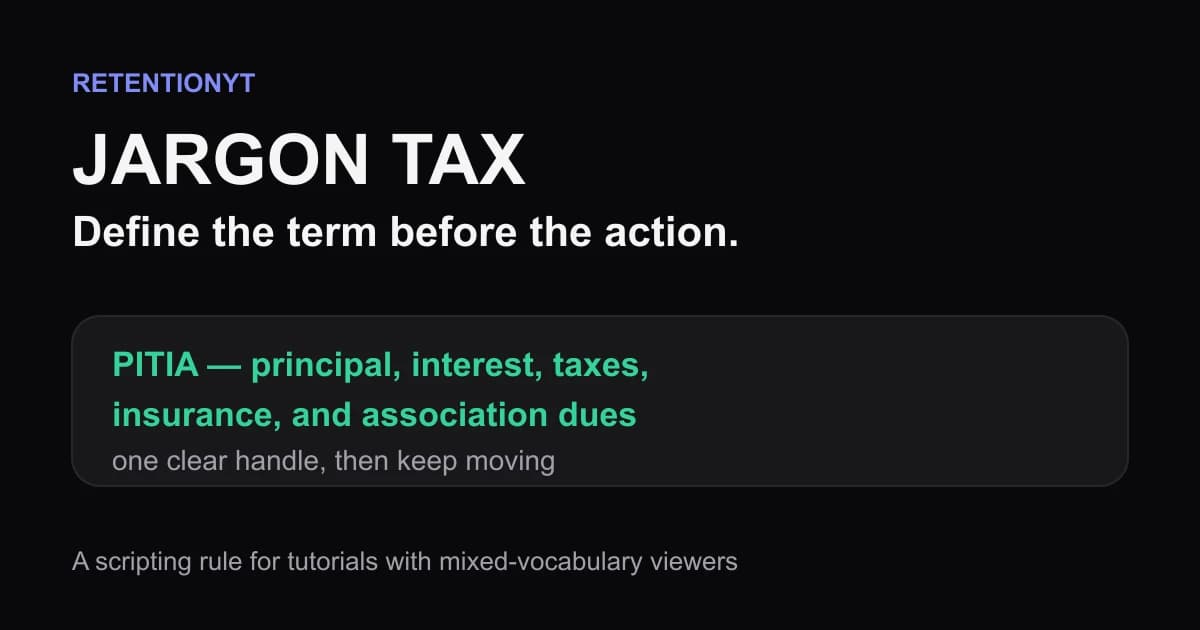
Jargon Tax: How One Unexplained Term Cliffs a Tutorial
Explain jargon in a YouTube tutorial before viewers have to guess, using a one-clause definition, a visible formula, and a Studio check that protects retention.