Line-Numbered Scripts: A Template that Matches Studio Seconds
Use a YouTube script template with timestamps and line numbers to match Studio moments to exact sentences, flag risk, and fix pacing before you record.

10 min readUpdated
In this guide
Use 4 columns: number every spoken line and estimate its timestamp from your words-per-minute rate. Leave a risk-color column beside the text, so when you review 0:47 you can jump to a sentence instead of hunting through a paragraph. This copy-paste template works in a Google Doc, a Markdown file, or a plain table, even if you never open RetentionYT.

Where RetentionYT fits
Manual method works alone. Product shortens the loop. Use RetentionYT for a second review of the script after you have built the table yourself.
What Line-Numbered Scripts actually is (and what it is not)
A line-numbered script is a draft where each spoken beat has a stable row number, a timestamp estimate, the words you plan to say, and a risk label. The row is small enough to revise and specific enough to point at during a review. If a sentence contains two jobs, split it; if two fragments do one job, keep them together.
This is an editorial workflow, not a native YouTube Studio setting. It does not prove that a line caused a drop, guarantee a retention lift, or turn a rough script into a finished edit. It gives you a clean map between the script you wrote and the time you are discussing.
Keep the four fields plain: Line # is the address, Timestamp estimate is the planning clock, Text is the spoken copy, and Risk color is a pre-record judgment. Use green for clear, amber for uncertain, and red for a likely pacing or promise problem.
| Field | What to put there | What it lets you do |
|---|---|---|
| Line # | 001, 002, 003 in spoken order | Jump to one sentence during review |
| Timestamp estimate | Cumulative words converted with your WPM | Budget the opening and section lengths |
| Text | The exact words you expect to say | Rewrite the actual cause, not a topic label |
| Risk color | Green, amber, or red plus a reason | Prioritize the rows most likely to need work |
An estimate is a planning clock; an observed time is what the recording produced. Keep both when the difference teaches you about delivery speed.
Why this shows up in YouTube Studio
The current locked SOURCE 1 page is titled “Understand your YouTube video reach.” It documents a public path through YouTube Studio: sign in, select Content, select Analytics for the video, then select Reach. It also lists metrics such as impressions, click-through rate, views, average view duration, and watch time. This article uses those verified navigation and metric terms; it does not claim that the page is an audience-retention tutorial.
The current locked SOURCE 2 page says the channel-level Content tab covers how audiences find, watch, and interact with content. Its August 24, 2026 notice says views start when a video starts to play across formats.
The practical reason for the draft is traceability. At 0:47, locate the closest line, read the surrounding beat, and decide whether the issue is wording, delivery, visual timing, or an inaccurate estimate. That is a workflow rule of thumb, not a claim that YouTube assigns causes to individual script lines.

The curve is illustrative, not source data. Use it to ask, “What happens near this moment in my own report?” rather than to infer a benchmark from a teaching graphic.
Worked example 1: the failure
Imagine a creator has a 900-word tutorial draft in three large paragraphs. The first paragraph contains the hook, a disclaimer, and the first visual cue. The second contains the main explanation and a screen recording note. The third contains the payoff and call to action. After recording, the creator sees a review moment around 0:47 and has to search through the document to find the sentence.
The failure is not that the document lacks words. It lacks addresses. A paragraph is too large to function as a debugging unit because it contains several different jobs, and the timestamp estimate is attached only to a block rather than to the line that needs changing.
| Line range | Timestamp estimate | What the draft contains | Risk color |
|---|---|---|---|
| Paragraph 1 | 0:00–0:35 | Hook, disclaimer, first visual cue | Red — three jobs share one address |
| Paragraph 2 | 0:35–2:10 | Explanation, example, screen note | Amber — timing is only a guess |
| Paragraph 3 | 2:10–3:00 | Payoff, CTA, end-screen note | Red — payoff and exit are bundled |
These times and risk labels are illustrative, not YouTube measurements. The creator cannot tell whether 0:47 landed inside the explanation, the example, or the screen note. Because the document has no stable line numbers, every revision starts with a search instead of a decision.
Worked example 2: the fix
Split the tutorial into spoken beats. Give the hook, disclaimer, example, explanation, and call to action separate rows. Now a 0:47 review moment points to a small neighborhood of lines instead of a whole paragraph.
Use the WPM formula as a planning rule: estimated seconds = cumulative spoken words ÷ WPM × 60. If an illustrative draft has 65 cumulative words and an illustrative delivery rate of 130 WPM, the estimate is 30 seconds. That number is a planning aid; after recording, replace it with the observed time and note whether your delivery sped up, slowed down, or added pauses.

Copy this column order into your working notes: | Line # | Timestamp estimate | Text | Risk color |. Start with 001, keep timestamps cumulative, and write the risk reason beside the color.
The manual method works without a signup. If you want a script-side review after the table is built, use the script review tool once; keep the line numbers in your source so the review does not erase the addresses you created.
How to check this in YouTube Studio (step by step)
First, open your final draft and confirm that line numbers increase in spoken order. Second, read the script aloud at the delivery pace you expect to use. Third, calculate each timestamp from cumulative words, not from the word count of the current line alone; otherwise every later row starts from the wrong clock.
Fourth, check the risk column with the frame hidden. Red rows should name the problem, such as “promise arrives late,” “sentence is too long,” or “visual cue is missing.” Fifth, record the video and write observed timestamps beside the estimates instead of deleting the estimates. The difference is useful evidence for your next script.
For a public YouTube Studio path, SOURCE 1 currently says to sign in, select Content, choose the video, select Analytics, and select Reach. SOURCE 2 describes the Content tab at channel level. The exact report available to you can vary by account and format, so treat the current interface as the authority and do not invent a Line-Numbered Scripts checkbox.

For structure ideas, compare the table with How to script a YouTube video and the YouTube script outline template; their examples do not replace the locked sources.
The trap
The trap is mistaking a numbered document for a useful one. You can number every paragraph and still make the review slow if each row contains a hook, explanation, visual cue, and CTA. The number must point to one job, and the timestamp must be close enough to guide a real recording review.
Another trap is using risk colors without text. Red should not mean “bad because red”; it should say why the row is risky. A reviewer who sees the file in grayscale should still understand whether to ignore, watch, or rewrite the line.
The trap
The move

The brief describes SOURCE 1 as “Audience retention,” but the locked URL currently opens “Understand your YouTube video reach.” The article therefore uses only the source-supported path and metrics; line-numbered mapping remains editorial.
What to do in the next upload
Use the following pass before you open the camera app or press record.
- Start with the first spoken sentence and give it line 001.
- Split every distinct spoken beat into its own row.
- Measure your own WPM with a short read-aloud instead of borrowing a benchmark.
- Convert cumulative words to timestamp estimates with the stated formula.
- Keep the exact spoken text in the Text column.
- Mark green, amber, or red and write the reason beside the color.
- Give the hook, proof, visual cue, payoff, and CTA separate addresses when they are separate jobs.
- After recording, add observed timestamps beside the estimates.
- Use the current Studio report that is actually available to your account.
- Rewrite the highest-risk rows before the next upload.
Keep the template small enough to use. Each row is a revision address, not a decorative transcript fragment.
Your deliverable is a paste-ready table, a WPM estimate, and a risk reason for each row. At 0:47, point to the line, read it aloud, check the visual handoff, and revise the smallest useful unit.
Frequently asked questions
- How do I number a YouTube script?
- Give each spoken line its own number in the order you will say it. Keep the number beside the text, then add a timestamp estimate and a short risk label on the same row. If one sentence contains two separate beats, split it into two lines so you can revise one beat without losing the other.
- Should every sentence be a line?
- Usually, yes, when the sentence carries a distinct idea, beat, or visual cue. Short connective phrases can share a line if splitting them would make the draft harder to read. The practical test is whether you can point to one line when you hear a problem; if not, make the line smaller.
- How do I add timestamps in the draft?
- Count the spoken words up to the line, divide by your words-per-minute rate, and multiply by 60 to estimate seconds. For example, 65 words at an illustrative 130 WPM equals about 30 seconds. Replace the estimate with the real time after recording; the draft timestamp is a planning aid, not a published measurement.
- Is a two-column script better?
- A two-column script can help when you need spoken text beside visual direction, but it can hide timing and revision risk. For a retention pass, use four fields: line number, timestamp estimate, spoken text, and risk color. Add a visual note inside the text cell or in a separate working document when the production needs it.
- Does this work in Google Docs?
- Yes. Build the table in Google Docs or another editor that preserves rows and columns, then copy the Markdown version into your project notes or repository. Keep the line number attached to the sentence during revisions. The method depends on stable row labels, not on one specific writing app.
- How do I apply “Line-Numbered Scripts” on my next upload?
- Start with the first spoken sentence and number every line in order. Add a timestamp estimate from your measured WPM, assign a risk color, and read the script while checking that each line has one job. After recording, replace estimates with observed times and use the line numbers to target rewrites.
- Where in YouTube Studio do I check “Line-Numbered Scripts”?
- You will not find a native YouTube Studio control named Line-Numbered Scripts. Use the method in your draft, then open the current Analytics areas for the video or channel and compare the moment you are reviewing with your line-numbered script. The exact screen depends on the report and account state, so do not treat the template as a product feature.
- What is the most common mistake with “Line-Numbered Scripts”?
- The common mistake is numbering paragraphs instead of spoken beats. A paragraph may contain a hook, explanation, and visual cue, so a Studio moment still leaves you searching. Split the paragraph into line-sized jobs, keep one timestamp estimate per line, and mark high-risk rows before you record.
Give your next script a second look
Paste a script into RetentionYT for suggestions on your hook, pacing, and structure. Choose the edits that serve your video, then check audience behavior in YouTube Analytics after publishing.
Get retention tips in your inbox
Occasional, practical emails on hooks, pacing, and retention. No spam.
Related posts
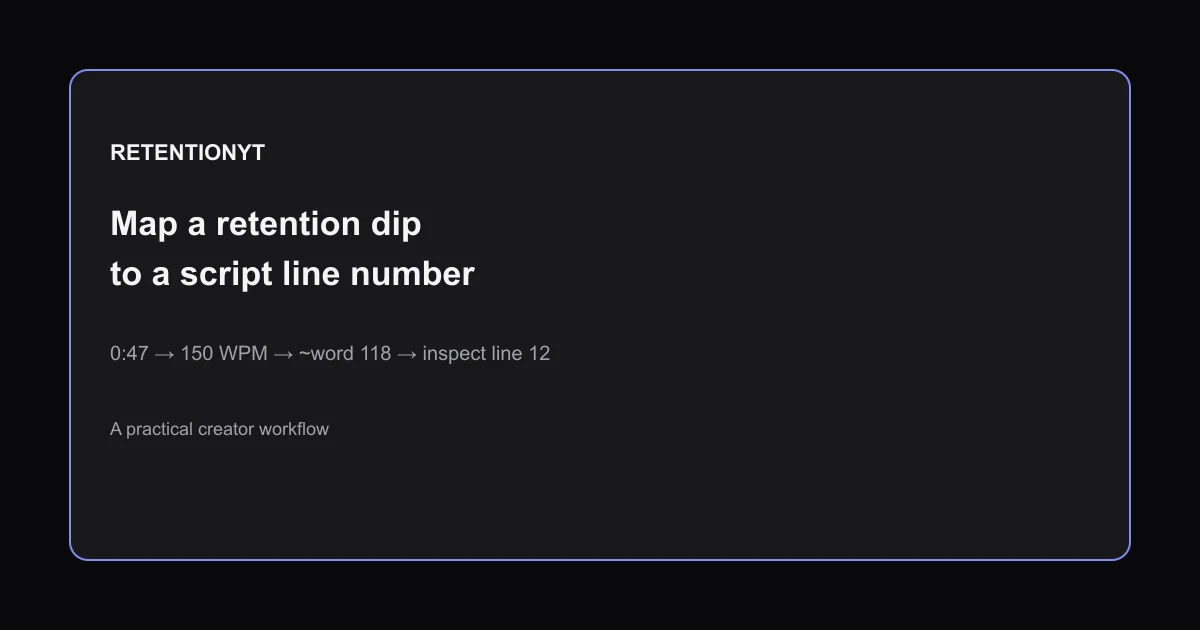
How to Map a Retention Dip to a Line Number in Your Script
Learn how to find which script line caused a retention dip: convert WPM to seconds, number your script, map the timestamp, and rewrite the right line.
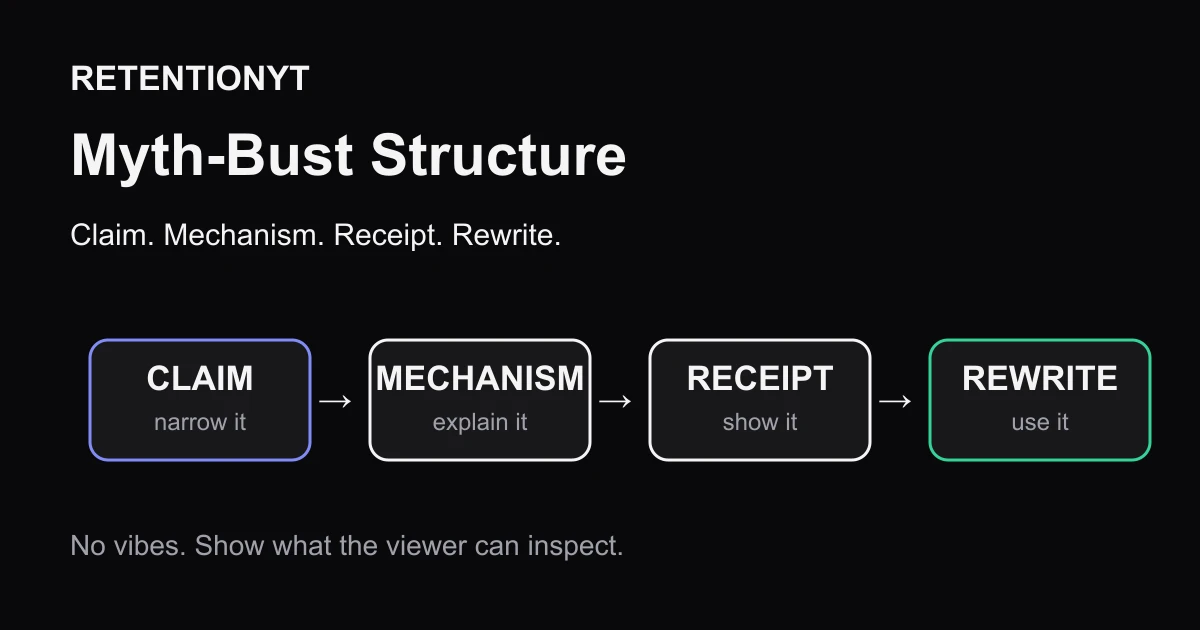
Myth-Bust Structure: Claim, Mechanism, Receipt, Rewrite
Build a YouTube myth-busting video script around a claim, mechanism, receipt, and rewrite so your viewer gets evidence, context, and a move to try tomorrow.
Character / Named Example in Tutorials
Use named situations, not invented creators, in YouTube tutorials: four honest rewrites that make examples specific, useful, and safe for retention.