How to Map a Retention Dip to a Line Number in Your Script
Learn how to find which script line caused a retention dip: convert WPM to seconds, number your script, map the timestamp, and rewrite the right line.

10 min readUpdated
In this guide
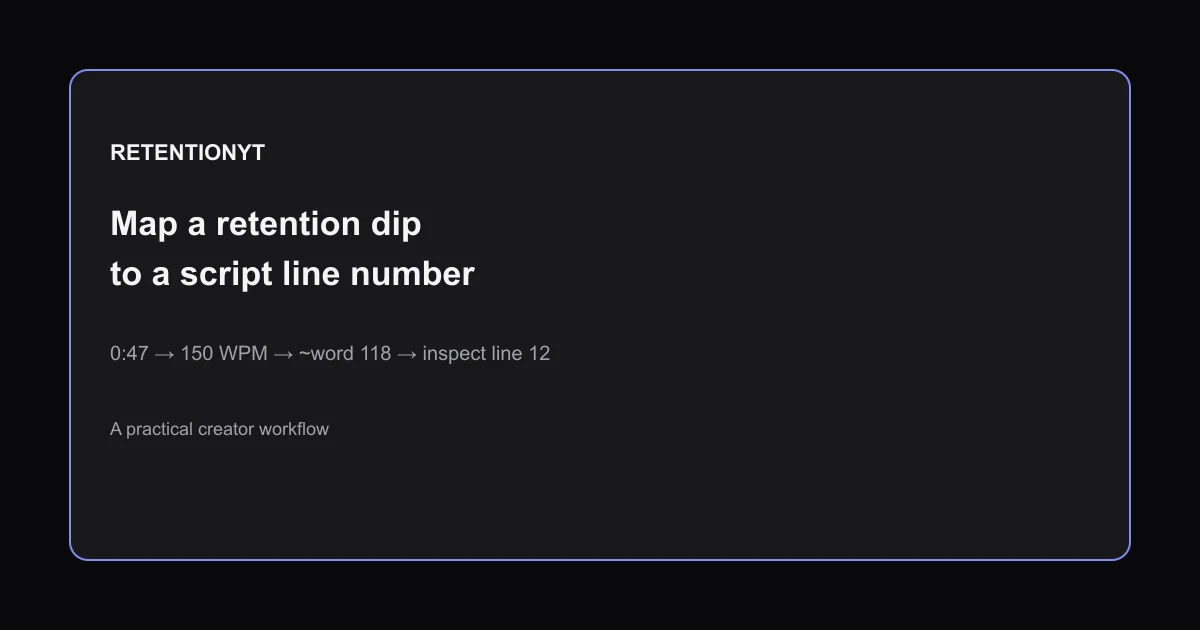
A dip at 0:47 is a line, not a vibe. At an illustrative 150 words per minute, you speak about 2.5 words a second, so 0:47 lands near word 118. Number your script, highlight the matching line, and inspect the edit around it before you rewrite. The manual method works on a printed page; software simply makes the alignment faster.

Where RetentionYT fits
Manual method works alone. Product shortens the loop. Try RetentionYT when you want a faster alignment workflow.
What How to Map a Retention Dip to a Line Number in Your Script actually is (and what it is not)
This is a repeatable investigation method. You start with a timestamp on your retention graph, convert your delivery rate into seconds per spoken word, estimate the word position, and then locate the corresponding numbered line in your script. You are not claiming that the graph names a sentence. You are building a small, testable window around the moment where attention changed.
| Question | What the method can tell you | What it cannot prove |
|---|---|---|
| Where did attention change? | The approximate time window to inspect | The exact sentence that caused every exit |
| What should you check first? | The numbered line, nearby lines, edit, and delivery | That rewriting alone will fix the curve |
| What improves the next upload? | A logged hypothesis and a cleaner test | A universal retention benchmark |
The numbers in the Stats block and table are illustrative. They show the arithmetic in a concrete way; they are not a published benchmark, a sample from RetentionYT customers, or a claim about your audience.
Open your video’s analytics and look for the retention view or the “Key moments for audience retention” report when it is available. The current YouTube performance guide places channel-level reporting under Analytics and Content, and says the report shows how well different moments held viewers’ attention 2. If the interface labels differ on your account, follow the labels Studio actually displays rather than copying an old tutorial.
YouTube also warns through its Help documentation that some reports may not be available on mobile devices 1. For this workflow, use a desktop window where you can read the graph, pause the video, and keep the script open at the same time. You can open YouTube Studio directly, then select the upload you are investigating.

Do not confuse this graph with every other metric in Studio. The performance guide separately lists views, average view duration, average percentage viewed, and watch time as metrics with different meanings [2]. Use the retention shape to select a moment, then use the video and script to investigate it. Do not use a view count to pretend you have located a line.
Worked example 1: the failure
Now imagine that your script is a wall of paragraphs. You search for the 118th word and find a sentence, then immediately announce that sentence caused the dip. That is the failure. Paragraph breaks do not necessarily match spoken beats, and the video may contain a cold open, a pause, a lower-third, a cutaway, or a line read faster than the average.
| Input or calculation | Illustrative value | Why it matters |
|---|---|---|
| Retention timestamp | 0:47 | Starting point for inspection |
| Speaking rate | 150 WPM | Rule-of-thumb input, not a benchmark |
| Words per second | 150 ÷ 60 = 2.5 | Converts rate to elapsed time |
| Approximate word position | 47 × 2.5 = 117.5, about 118 | Places the first search window |
| Script layout | Unnumbered paragraphs | Makes the review slow and vague |
| Conclusion | “Line 12 caused it” | Unsupported if edit and delivery were not checked |
This example is illustrative. The number 118 is arithmetic from the stated inputs, not a measured YouTube result. Even the word position is approximate because a pause uses time without adding words, while a fast delivery adds words sooner. If you publish this method, label the arithmetic exactly as you see it here.
Worked example 2: the fix
Keep the same illustrative 0:47 timestamp and 150 WPM rate, but prepare the script before you need it. Break the voiceover into short spoken chunks and number them. Write the starting word count and an estimated start time beside each chunk. Mark pauses, music-only beats, screen recordings, and edits that change the timing.
Your first pass should produce a hypothesis, not a verdict. For example: “The explanation is clear, but the screen stays on the same frame while I say three unfamiliar terms.” The corresponding fix is likely an edit or visual cue. Another hypothesis might be: “The line promises a calculation, then delays the number for 12 seconds.” That points to a rewrite or re-ordering.

Use the YouTube script outline template to make the chunks visible on the next draft. If you already have a long script, do not reformat the whole archive before acting. Copy the relevant section, number it, and document the assumption you made about WPM.
Here is the formula: seconds per word = 60 ÷ WPM. At an illustrative 150 WPM, 60 ÷ 150 = 0.4 seconds per word. The inverse form is approximate word position = seconds × WPM ÷ 60. At 47 seconds, 47 × 150 ÷ 60 = 117.5 words. Use one form consistently; switching between them is where avoidable arithmetic errors appear.

The YouTube script review tool can shorten the manual alignment loop when you want a repeatable review surface. The manual method remains the control: if a tool suggests line 12, open the script and the edit and decide whether the suggested line makes sense. A faster guess is still a guess until you inspect the evidence.
How to check this in YouTube Studio (step by step)
-
Open Studio on desktop and select the upload. Go to Analytics and the Content area when your account shows that channel-level view. Find the audience-retention report or the Key moments card when available. The exact availability can differ by account and video.
-
Choose one visible change in the curve. Record the timestamp to the nearest second that you can read reliably. Do not copy every small movement. Start with a drop that has a clear editorial moment around it.
-
Write down your speaking rate. A measured rate is best: count the spoken words in a representative section and divide by its duration in minutes. If you use 150 WPM as a starting point, write “illustrative rule of thumb” beside it.
-
Calculate the approximate word position. Use seconds × WPM ÷ 60. For a 0:47 point at 150 WPM, the result is about word 118. Put a bracket around a window rather than circling one supposedly exact word.
-
Watch the window with the graph in mind. Inspect the line before the dip, the line at the estimate, and the line after it. Check the spoken promise, the visual change, the cut timing, the music, and whether the viewer gets the information quickly enough.
-
Choose the smallest useful change. Cut a redundant phrase, move the answer earlier, add a visual cue, or rewrite an unclear line. Record why you chose that change. Do not make five unrelated changes and then claim the graph proved one of them.
-
Save the result as a production note for the next upload. Your note should contain the timestamp, WPM, approximate word position, inspected lines, hypothesis, change, and what you will compare next time. That turns a graph into a feedback loop.
You can also compare the moment with the typical-retention reference when Studio provides it. YouTube’s performance guide describes typical retention as a comparison with the latest videos of similar length [2]. Treat that comparison as context, not a diagnosis. The line still needs to earn its place in the edit.
If you need a second opinion on the script itself, link the investigation to your how to script a YouTube video notes. That keeps the retention review connected to structure and delivery rather than turning analytics into a list of isolated numbers.
The trap
The trap is false precision. You see 0:47, calculate 118, and blame the sentence at word 118. That skips the delay between a visual change and the viewer’s decision, ignores pauses, and assumes your WPM is constant. It also encourages the wrong fix: polishing a line that was never the source of friction.
The trap
The move

A retention dip chooses the window; your script and edit explain the window.
What to do in the next upload
Create the numbered script before you publish, not after a disappointing graph appears. Put each spoken chunk on its own line, keep the word count visible, and note the measured WPM for the finished voiceover. Leave room for a production note beside each line so the next review starts with evidence instead of memory.
Use the checklist below as a compact handoff to yourself or an editor. It deliberately begins with a manual method. Once that works, you can use RetentionYT to shorten the loop and keep the same reasoning visible.
- Open the upload in YouTube Studio on desktop and locate the available retention report.
- Record one clear dip timestamp, not every small curve movement.
- Measure or label your WPM; mark 150 WPM as illustrative if you use it as a starting point.
- Convert seconds to an approximate word position with one formula.
- Number the relevant script chunks and bracket the surrounding lines.
- Watch the edit before deciding whether the fix is a recut, rewrite, reorder, or no change.
- Log one hypothesis, one smallest useful change, and the evidence you inspected.
- Compare the next upload without claiming that one change proves causation.
Frequently asked questions
- How do I know which sentence lost viewers?
- You cannot identify a sentence from a retention graph alone. Treat the timestamp as an approximate location, convert your speaking rate into seconds per line, then compare the timestamp with your numbered script and the actual edit. Check a few lines on either side because pauses, cuts, and delivery speed shift the match.
- How do I convert WPM to seconds?
- Words per minute, or WPM, is your speaking rate. Convert it to words per second by dividing WPM by 60, then divide the word position by that result. For example, 150 WPM is 2.5 words per second, so a timestamp at 47 seconds maps to about 118 spoken words before you adjust for pauses and edits.
- What WPM should I assume?
- Use a measured rate when you can: time a representative minute of your finished voiceover and count its words. If you need a starting point, 150 WPM is a clearly labelled rule of thumb for the worked example here, not a YouTube benchmark. Recalculate after checking your actual delivery, especially for tutorials, comedy, or heavily edited videos.
- Can I do this without software?
- Yes. You need a retention timestamp, a copy of your script, a word count, and a calculator or spreadsheet. Number the script by spoken chunks, estimate the timestamp for each line, and inspect the matching line plus the surrounding lines. Software can shorten the alignment loop, but it does not replace checking the edit and delivery.
- Should I recut or rewrite the line?
- Rewrite when the line is unclear, delayed, repetitive, or unsupported by what the viewer sees. Recut when the information is useful but the shot, pause, or order creates friction. First inspect the line and the edit together; a dip is a signal to investigate, not proof that one sentence alone caused the loss.
- How do I apply “How to Map a Retention Dip to a Line Number in Your Script” on my next upload?
- Before publishing, save a numbered script beside the project and note the measured WPM for the voiceover. After the video has enough data to show a usable retention curve, record the dip timestamp, convert it to an approximate word position, and inspect that line with its neighbouring edit. Log the change you make and compare the next upload.
- Where in YouTube Studio do I check “How to Map a Retention Dip to a Line Number in Your Script”?
- In YouTube Studio on desktop, open Analytics and then the Content tab for channel-level performance. For a video, look for the Key moments for audience retention report when it is available. The exact reports and eligibility can vary, so use the current Studio labels rather than assuming every upload shows every card.
- What is the most common mistake with “How to Map a Retention Dip to a Line Number in Your Script”?
- The common mistake is treating the timestamp as a perfectly precise sentence marker. A viewer may be reacting to the setup, a cut, a pause, or a visual that starts before the spoken line. Use the timestamp as an investigation window, label your numbers illustrative, and check the line, edit, and promise together before changing the script.
Give your next script a second look
Paste a script into RetentionYT for suggestions on your hook, pacing, and structure. Choose the edits that serve your video, then check audience behavior in YouTube Analytics after publishing.
Get retention tips in your inbox
Occasional, practical emails on hooks, pacing, and retention. No spam.
Related posts
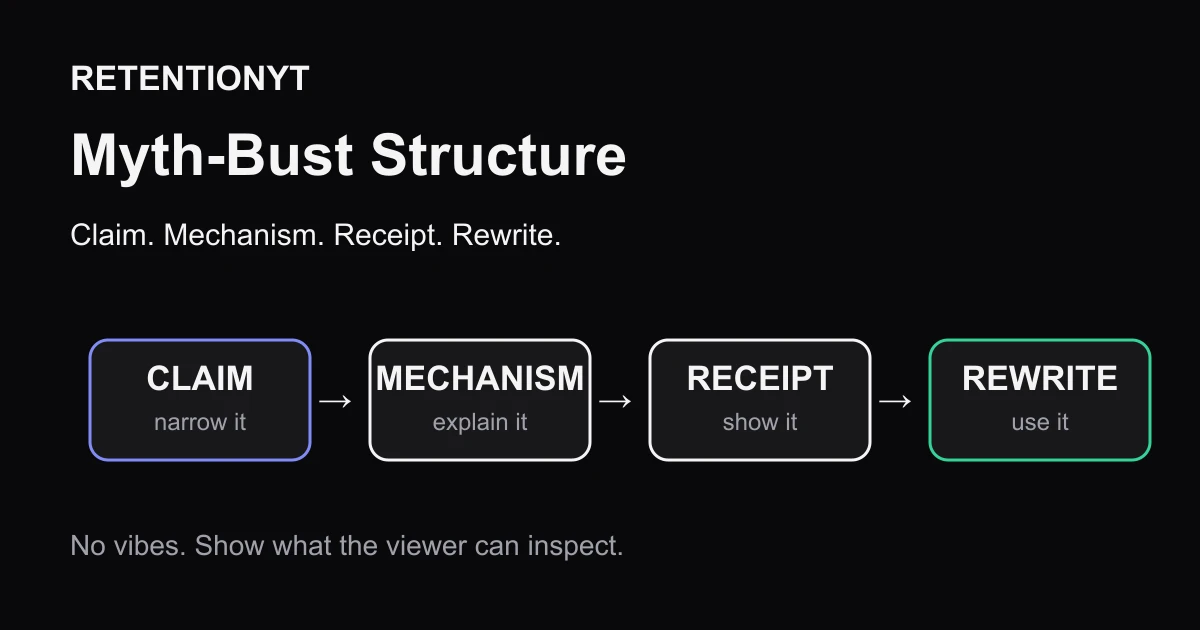
Myth-Bust Structure: Claim, Mechanism, Receipt, Rewrite
Build a YouTube myth-busting video script around a claim, mechanism, receipt, and rewrite so your viewer gets evidence, context, and a move to try tomorrow.
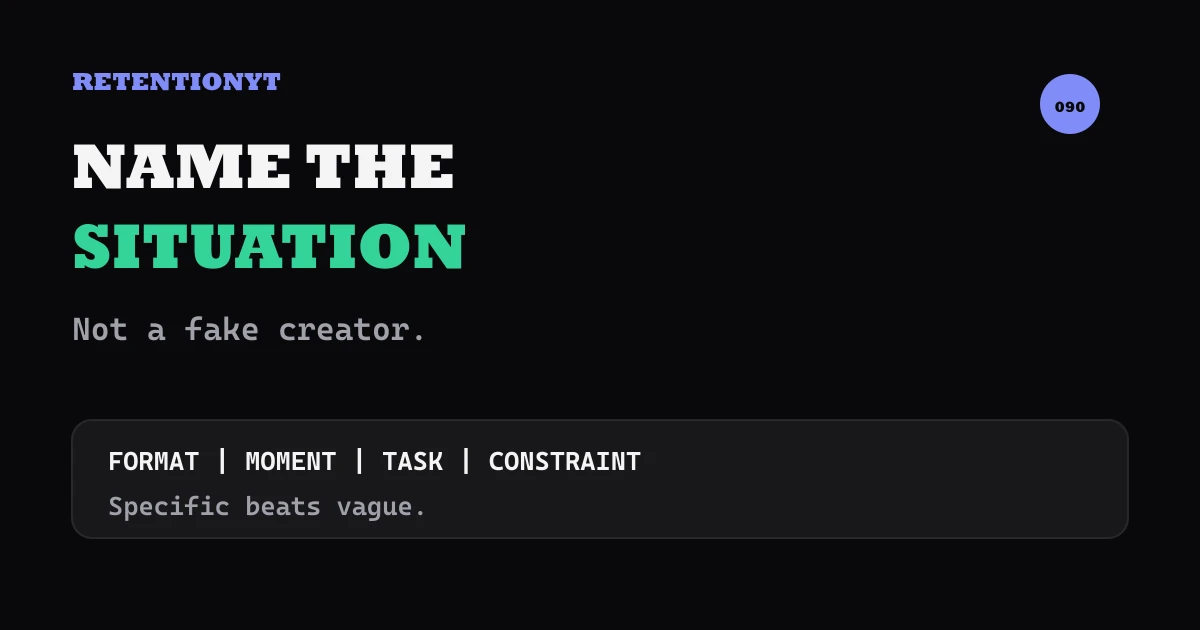
Character / Named Example in Tutorials
Use named situations, not invented creators, in YouTube tutorials: four honest rewrites that make examples specific, useful, and safe for retention.
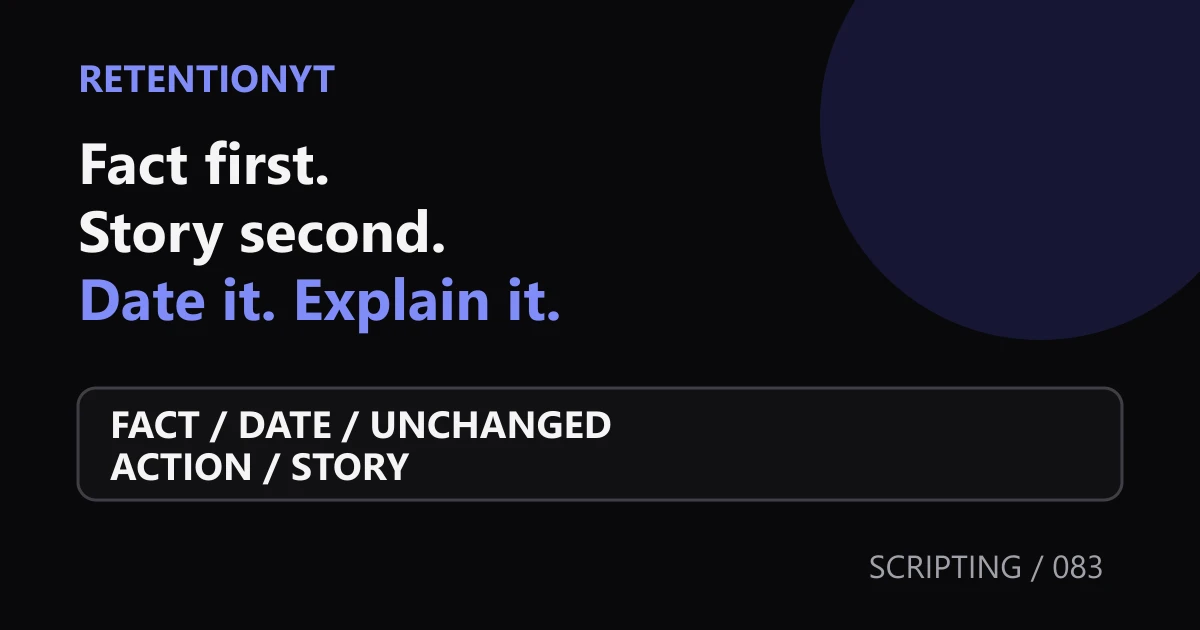
News/Explainer: Timestamped Facts vs Story
Script a YouTube news explainer with the fact and date first, then what did not change and what to do. Use the story only after the viewer has the answer.