News/Explainer: Timestamped Facts vs Story
Script a YouTube news explainer with the fact and date first, then what did not change and what to do. Use the story only after the viewer has the answer.

10 min readUpdated
In this guide
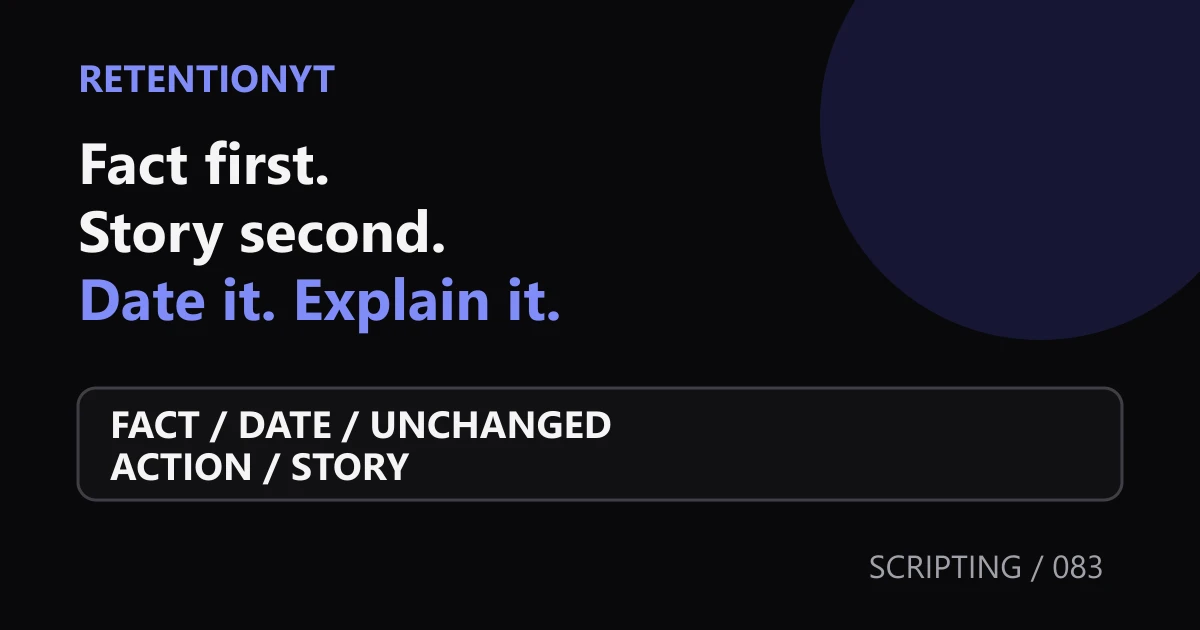
If you are explaining a YouTube change, sentence 1 is the fact and the date. Sentence 2 is what did not change. Sentence 3 is what to click or do. Use 8 seconds to orient the viewer, then tell the story of why it matters. If the change is not verified, say so instead of turning a rumour into news.

What News/Explainer actually is (and what it is not)
News/Explainer is a writing order for a current change. It gives the viewer a small, verifiable answer before asking them to follow a longer explanation. The order is fact, date, unchanged item, action, story. The story is useful, but it is not allowed to hide the answer.
This is not an official YouTube format, Studio report, or ranking signal. It is an editorial template for a creator who needs to explain a UI, metric, policy, or workflow change without mixing confirmed information with interpretation. Manual research works without signing up for RetentionYT.
| Part | What you say | What the viewer gets | What to verify |
|---|---|---|---|
| Fact | The plain change in one sentence | A stable subject | The source wording |
| Date | When the fact applies or was verified | Scope and freshness | The exact date and timezone if relevant |
| Unchanged | What viewers should not expect to change | A boundary around the news | The source and your own product context |
| Action | What to click, check, or do next | A usable next step | The current path or instruction |
| Story | Why the change matters in practice | Meaning and memory | Evidence, examples, and uncertainty |
The fact and date orient the viewer; they are not a teaser. Precision beats invented urgency. You can still write: “On August 24, 2026, the report changed; your next check is here.”
These four counts describe the opening template, not a YouTube performance benchmark. Keep the distinction visible in your script. A current event can be important without every part of your explanation being confirmed on the same day.
Why this shows up in YouTube Studio
Your script runs before the upload, but Studio is where you inspect the published result and confirm the next action a viewer should take. Do not invent a menu path because it sounds familiar. Open the relevant report and write the path you actually verified in your notes.
The locked YouTube Help page for Reach says that the Reach tab gives a snapshot of metrics including click-through rate, watch time, views, and more. Its computer instructions say to sign in to YouTube Studio, select Content, select a video, select Analytics, and choose Reach from the top menu (YouTube Help, August 2026). That is a source-backed action path for a selected video.
The second locked page says the Content tab in YouTube Analytics provides an overview of how the audience finds content, what it watches, and how it interacts; it is available at channel level. Its computer path is Analytics, then Content, and its Videos section includes key moments for audience retention and typical retention for comparing the 10 latest videos of similar length (YouTube Help, August 2026). Use these documented descriptions to explain where you looked, not to claim that News/Explainer is a Studio feature.

The chart is illustrative, not a universal law. Use your own evidence, and update the fact, date, and action when the source changes.
Worked example 1: the failure
This illustrative example uses a creator explaining an imagined interface change dated August 24, 2026. No client announcement or private analytics export was supplied, so the numbers below are invented for the scripting exercise. The creator opens with: “You will not believe what YouTube changed this week, and the reason is bigger than a new button.”
The story starts before the fact. Viewers do not know what changed, which date applies, what did not change, or what they should click. The creator then spends 40 seconds describing a fictional before-and-after screen. That is a narrative, not an explainer, and the viewer has to wait for the useful sentence.
Table 2 — Illustrative worked-example numbers. These values are invented for the craft demonstration and are not YouTube data, a RetentionYT case study, or a published benchmark.
| Draft element | Illustrative value | Problem created | Safer replacement |
|---|---|---|---|
| Date revealed | 0:42 | Scope arrives after the story begins | Say “August 24, 2026” in sentence one |
| Fact revealed | 0:18 | Search answer is delayed | State the change before the backstory |
| Action shown | 1:05 | Viewer cannot act yet | Name the report or step after the fact |
| Story length | 40 seconds | Context crowds out orientation | Cut to one verified reason |
The failure is not the story; it is using story to carry the fact. The fictional screen is not evidence. Without the real change, label the scenario illustrative and do not present its button, date, or outcome as current news.
Worked example 2: the fix
The fixed illustrative opening uses the same imagined topic but restores the order: “On August 24, 2026, this report’s layout changed. The underlying video is still the same; first open Analytics, then check the documented report. Here is why that order matters when you explain the update.” The first sentence states the dated premise; the second sets a boundary; the third gives the action and earns the story.
Because this is an example, the date and interface are still illustrative. In a real news explainer, replace them with the exact date and wording from your locked source. If you cannot verify the date, say “the date is not confirmed” and move the story behind that qualification.
Then add the story in one controlled beat: explain the viewer problem the change creates, show the source text, and distinguish observation from interpretation. “The report is documented here” is different from “this will improve your reach.” The first can be sourced; the second needs evidence or should be cut.
The fixed version gives an answer first, then makes the story a reason to continue. That is the practical value of timestamped facts versus story.
How to check this in YouTube Studio (step by step)
First, freeze the claim: fact, verified date, unchanged item, and action. Write “verified on August 24, 2026” only when the source supports it; otherwise mark the date unconfirmed.
Second, open YouTube Studio and use the needed path. For a selected video, use Content → video → Analytics → Reach. For channel-level context, use Analytics → Content. Record any account or device difference rather than rewriting the source.
Third, write the opening as three spoken sentences. Sentence one contains the fact and date. Sentence two states what did not change. Sentence three gives the action. Read it at normal speed and check whether the first 8 seconds contain orientation rather than a teaser that could describe anything.
Fourth, add the story only after the answer is clear. Label each sentence as fact, explanation, example, observation, or action; remove unsupported sentences unless they are clearly illustrative.
Fifth, compare the delivered opening with accessible reports. Do not infer causation from the illustrative curve; use your own evidence to choose what to clarify or test next.
The trap
The trap is writing a news intro like a trailer: “everything changed,” date hidden, action delayed. Suspense then makes viewers search the story for the fact.
A second trap is false certainty. An old screenshot or remembered menu is not current evidence. If the locked Help source does not support a sentence, cut it or label it editorial; a timestamp does not permit invention.
The trap
The move

What to do in the next upload
Build a source-first note before scripting. Keep it readable in Studio, never fill gaps with plausible language, and treat an unwritable first sentence as a signal to research more.
- Write the verified fact in one plain sentence.
- Put the source-backed date beside that fact.
- Write one sentence saying what did not change.
- Name the next click or action only if you verified the path.
- Mark each illustrative number, screen, and scenario as illustrative.
- Record the first three sentences at 0:00–0:08.
- Read the opening aloud before adding backstory.
- Add one story beat only after the answer is clear.
- Separate fact, interpretation, observation, and example.
- Re-check current wording before publishing a dated update.
- Review your own Studio evidence after the upload.
For a faster pre-film review, the YouTube script review tool is a related option, not platform truth. Use how to script a YouTube video and the YouTube script outline template for broader structure. The manual method works without signing up; RetentionYT is optional.

Fact-first writing is not cold. It gives the viewer a stable answer before the explanation. Keep the answer short when the source is thin, and make a strong story clarify—not replace—the fact.

Frequently asked questions
- How do I script a news explainer?
- Lead with four things in order: the verified fact, its date, what did not change, and what the viewer should do. Use a short story only after those answers are clear. Put the source and date in your notes, write the opening aloud, and remove any context that delays the first useful action.
- Should I start with a story?
- Usually not when the viewer clicked for a current change. Start with the dated fact and the practical consequence, then use a story to make the consequence memorable. If the story is the evidence itself, keep it short and label what is confirmed, what is an example, and what remains unknown.
- Where does the date go?
- Put the date in the first sentence or first two spoken beats, beside the fact it dates. Do not hide it in a lower-third, description, or minute four. If the date is still unverified, say that plainly and stop short of presenting the change as settled news.
- Will this get outdated?
- A timestamp makes the scope honest rather than making the video useless. State the date you verified, separate the current fact from durable workflow advice, and tell viewers what to re-check. Update the title, description, and opening when the source changes instead of quietly leaving an old claim in place.
- Can I do this as a Short plus a long?
- Yes. Keep the same verified fact and date, then compress the Short to the action and one consequence. Let the long video explain what did not change, show the source, and add the optional story. Do not change the fact between formats, and do not imply that a Short replaces the fuller evidence.
- How do I apply “News/Explainer” on my next upload?
- Write four lines before you outline: FACT, DATE, UNCHANGED, ACTION. Record the first version without a story, then add only the context that helps the viewer understand why the change matters. Read the opening aloud at 0:00–0:08 and check that every sentence is supportable.
- Where in YouTube Studio do I check “News/Explainer”?
- You will not find a dashboard card named News/Explainer. It is a scripting label. For post-publish context, use the documented Studio reports: Reach for a selected video, and Analytics then Content at channel level. Use your own report evidence to review the opening; do not treat the label as an official metric.
- What is the most common mistake with “News/Explainer”?
- The most common mistake is leading with why the change matters before saying what changed and when. That turns a searchable answer into suspense. Put the confirmed fact and date first, say what did not change, give the action, and only then earn the story with evidence that helps the viewer decide.
Give your next script a second look
Paste a script into RetentionYT for suggestions on your hook, pacing, and structure. Choose the edits that serve your video, then check audience behavior in YouTube Analytics after publishing.
Get retention tips in your inbox
Occasional, practical emails on hooks, pacing, and retention. No spam.
Related posts
On-Screen Formula Beats Spoken Math
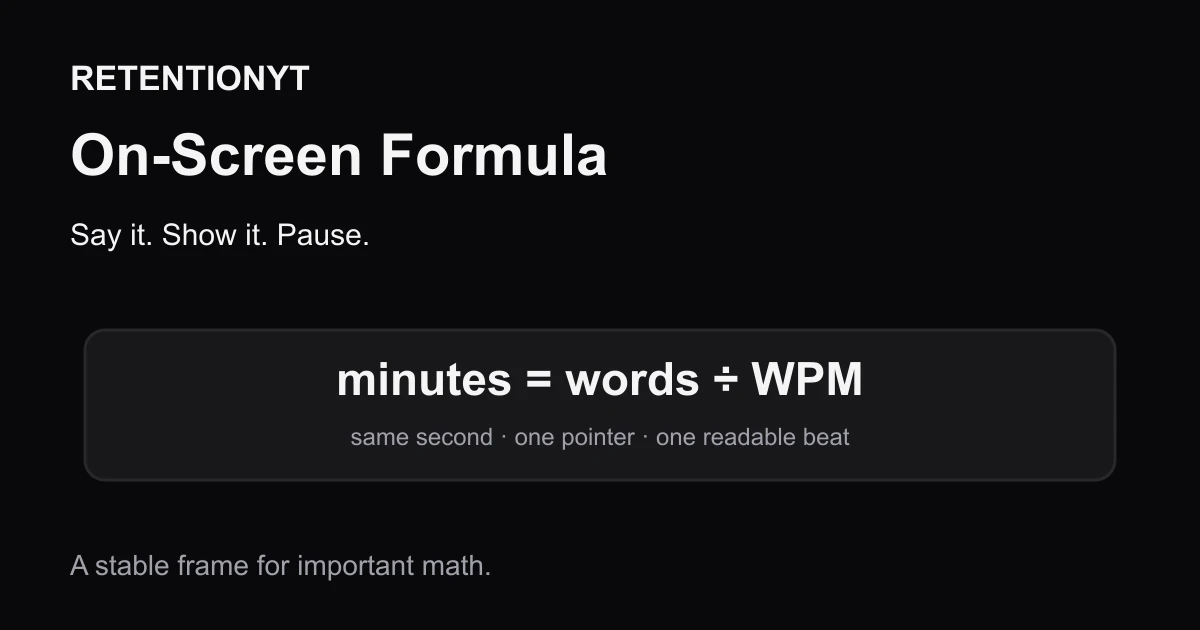
Put every important formula on screen as you say it. This YouTube tutorial method makes math pauseable, searchable, and easier to follow without slowing your spoken delivery.
On-Screen Text vs Spoken Redundancy
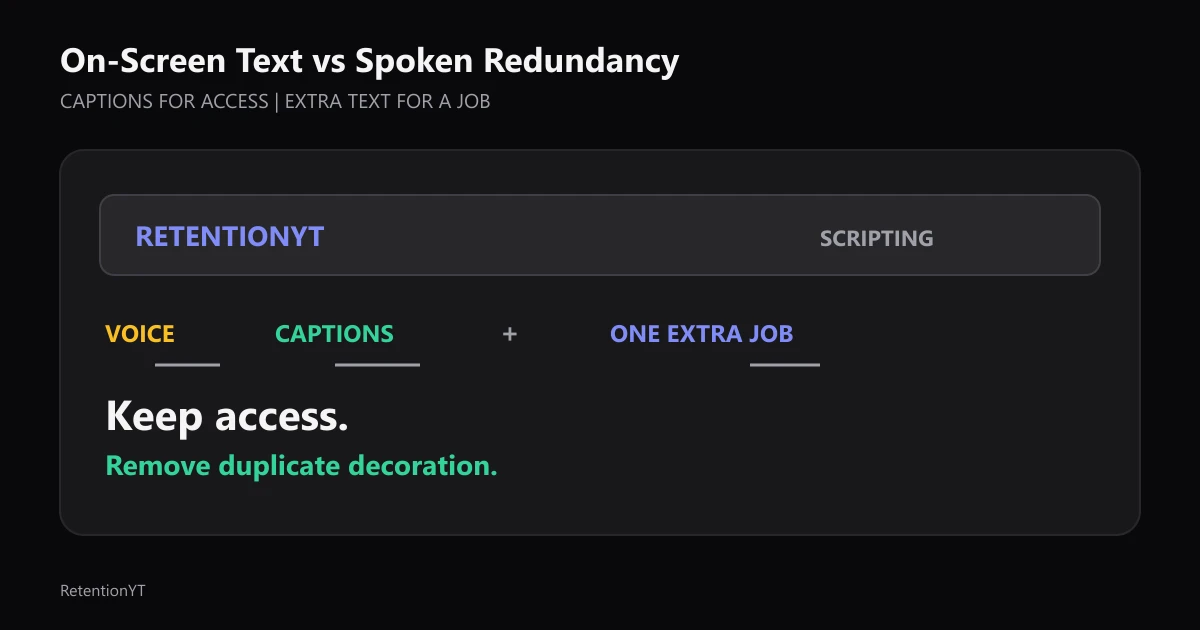
Should on-screen text match spoken words on YouTube? Let captions carry accessibility, then make every extra lower third add proof, direction, or a visual—not a duplicate sentence.
Open-Loop Budget Worksheet
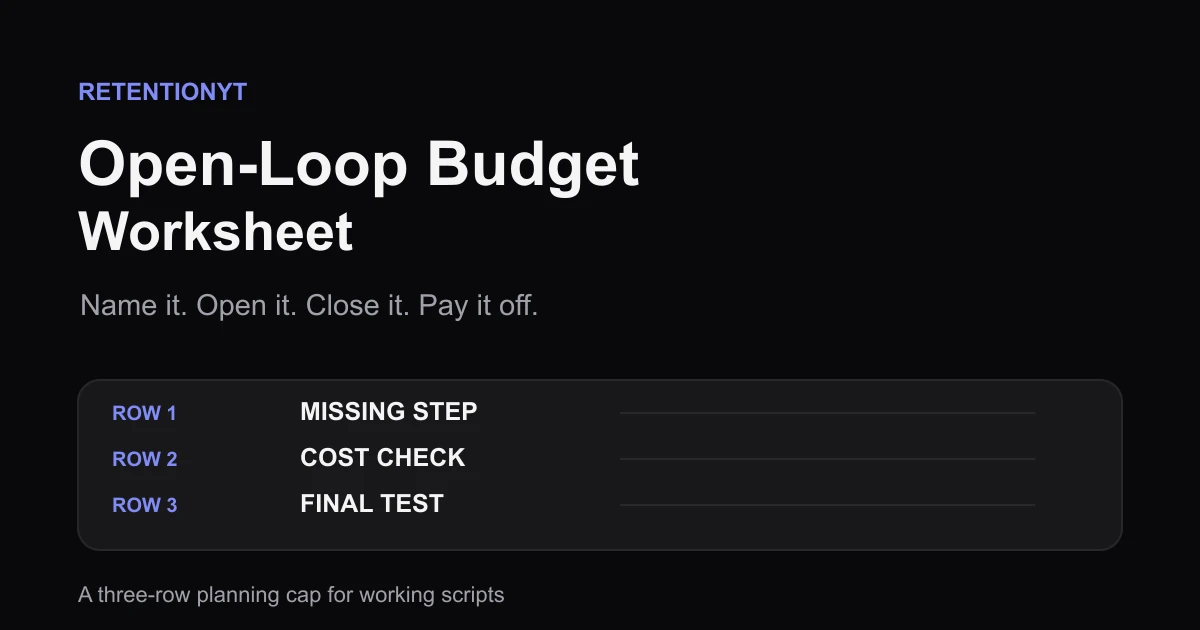
Use a YouTube open loop planner worksheet with three rows, open and close timestamps, and one-line payoffs so every tease has a planned ending.