On-Screen Formula Beats Spoken Math
Put every important formula on screen as you say it. This YouTube tutorial method makes math pauseable, searchable, and easier to follow without slowing your spoken delivery.

9 min readUpdated
In this guide
If the number matters, put it on screen in the same second you say it. Spoken-only math is a dip for anyone who blinked. Pause for one beat, point to the changing term, then continue. In a 10-minute tutorial at 140 words per minute, a 30-second explanation is about 70 spoken words; the frame can carry the formula while your voice carries the meaning.
What On-Screen Formula Beats Spoken Math actually is (and what it is not)
On-Screen Formula Beats Spoken Math is a scripting and editing method: write the expression in the draft, reveal it when you say the key number, and hold it long enough to read. “WPM” means words per minute, a speaking-rate measure you can use to budget the explanation. The method helps a viewer connect your words to a stable visual reference.
It is not a promise that every viewer will pause, a search-ranking trick, or a native Studio feature. Make the math readable while the explanation happens, so a viewer can follow live or pause without hunting through the edit.
Where RetentionYT fits
Manual method works alone. Product shortens the review. Use RetentionYT to inspect your script before recording.
| Method | What the viewer gets | What you must write |
|---|---|---|
| Spoken only | A moving sentence with no stable expression | The explanation and variable definitions |
| Formula on screen | Voice plus a readable visual reference | Exact expression, reveal time, and hold time |
| Formula plus pointer | Voice, expression, and attention on one term | Highlight target and the sentence that explains it |
The first table is a production comparison, not a YouTube benchmark. Write the expression before choosing animation. If it is too long for one frame, define the variables first, then show the calculation.

Why this shows up in YouTube Studio
Compare the script decision with the published video’s reports. Locked SOURCE 1 is currently titled “Understand your YouTube video reach.” It says Reach provides a snapshot of click-through rate, watch time, views, and how viewers found the video. It does not support a guaranteed formula-related lift.
SOURCE 2 says Content covers how viewers find content, what they watch, and how they interact with it. Its computer path is YouTube Studio, Analytics, then Content. “Key moments for audience retention” shows how different moments held viewers, and typical retention can compare 10 recent videos of similar length SOURCE 2, August 2026.
That gives you a careful test. Mark the reveal, pointer, and removal timestamps, then inspect the matching section. A dip may come from dense language, a slow demonstration, or voice-screen mismatch; the report does not name your cause.
SOURCE 1 also gives the selected-video path Content, Analytics, Reach and says its impressions report visualizes how thumbnail impressions led to views and watch time SOURCE 1, August 2026. Because its page differs from the brief’s label, only its observed Reach facts are used.

Worked example 1: the failure
Imagine an illustrative 10-minute tutorial about spoken length. The creator says, “Divide words by WPM to get minutes,” but never shows the expression. Then the creator says “one thousand four hundred divided by one forty” over a talking head.
The viewer must remember both numbers, infer the symbols, and calculate while listening. At illustrative 140 WPM, the 30-second budget is 70 words. The result is hard to inspect.
| Time | Illustrative frame and spoken line | Defect | Repair target |
|---|---|---|---|
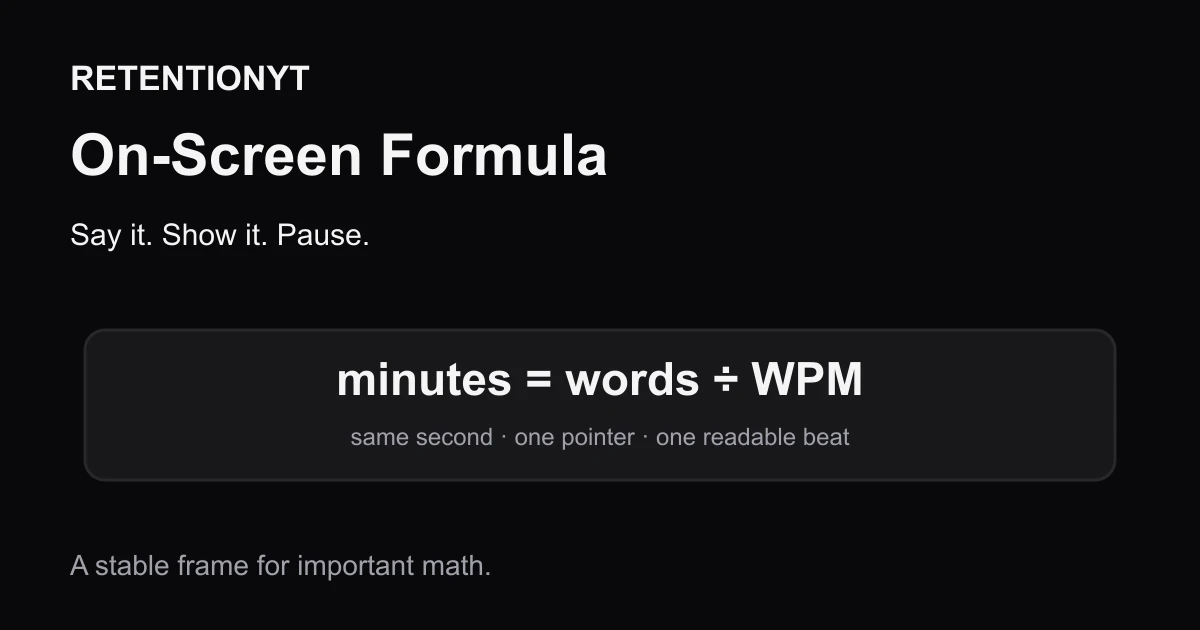
| 0:08 | “Use your word count and WPM to estimate runtime.” No formula. | The relationship stays abstract. | Show minutes = words ÷ WPM. |
| 0:18 | “1,400 divided by 140 is 10.” Talking head remains full screen. | The viewer must hold both numbers in memory. | Reveal the expression beside the voice. |
| 0:27 | Creator changes topic immediately. | No readable hold or pointer. | Pause one beat and point to 1,400. |
| 0:30 | Formula never appears in the draft or edit notes. | The editor has no exact asset instruction. | Add a screen cue and removal time. |
These numbers are illustrative, not YouTube data. The failure is a production problem: the formula exists in the creator’s head but not in the script or frame plan. Faster delivery would make the explanation harder to follow, not more authoritative.
Worked example 2: the fix
Keep the tutorial and write the visual beat beside the line. At 0:08, say, “Your runtime is words divided by WPM,” while the frame reveals minutes = words ÷ WPM. At 0:18, show 1,400 ÷ 140 = 10 minutes, highlight 1,400, and say, “That is the word count.”
Hold the expression for one beat. Say, “At 140 WPM, this illustrative 1,400-word script is about 10 minutes before pauses, demonstrations, or music,” while the result stays visible. The viewer can listen, read, or pause.
The fix is alignment: spoken number, visible number, pointer, and pause describe one operation. Compare the related tool and keep the cue in the script.
If the viewer has to remember the formula while you keep talking, the frame is doing too little.

Use related post 1 for longer tutorials and related post 2 for timed screen cues. Neither proves a percentage lift.
How to check this in YouTube Studio (step by step)
Start in the outline. Add the spoken line, exact expression, and hold/removal cue. If the expression will not fit one line, rewrite before recording.
- Measure your speaking rate and label it measured WPM; 140 WPM is illustrative.
- Mark the formula’s first spoken word and put the screen cue on that timestamp.
- Record with and without the formula; keep the clearer version.
- Reveal the expression when the key number is spoken and highlight one term.
- Hold it for one readable beat, then remove it when the idea changes.
- Open YouTube Studio. SOURCE 2’s path is Analytics, then Content; use Key moments for audience retention where available.
- Compare formula, explanation, and removal timestamps with a report; treat the curve as evidence, not a single-cause diagnosis.
- Rewrite the next beat: simplify, slow, extend the hold, or remove noise.
Use SOURCE 1’s Reach report for traffic context. Do not promise that search viewers will pause or call an editorial cue a Studio metric.

The trap
The trap is turning every sentence into a slide. A formula should reduce memory load, not cover the frame with labels, arrows, decimals, and caveats. If the viewer cannot find the term you are explaining, the visual competes with the lesson.
The trap
The move
Watch for three signs: the card appears before the setup, changes while the viewer reads, or remains after the idea moves on. Fix timing before animation; a static formula is often clearer.
The brief says search viewers pause and suggested viewers do not, but neither source supports that split. Do not publish it as fact; design a pauseable frame and test traffic contexts without promising the result.

What to do in the next upload
Use this checklist while the script is editable.
- Mark every number that changes the viewer’s decision.
- Write the exact formula beside the spoken sentence.
- Label your measured WPM; treat 140 WPM as illustrative, not universal.
- Add the reveal timestamp to the outline before recording.
- Say what each variable means before asking the viewer to calculate.
- Highlight one changing term instead of animating every symbol.
- Hold the completed expression for one readable beat.
- Remove the card when the next idea begins.
- Check the finished video in Studio’s available Content and retention reports.
- Compare the formula cue with the curve without claiming a guaranteed lift.
Script spoken and on-screen math as one beat: say it, show it, let the viewer connect the two, then move on.
Frequently asked questions
- Should I put formulas on screen?
- Yes, when the number or relationship matters to the viewer’s next decision. Put the formula on screen as you say it, keep the symbols large enough to read, and leave the finished expression visible for a short beat. This is an editorial method, not a native YouTube setting, so test the timing in your edit and keep the spoken explanation useful on its own.
- Do I still say the numbers?
- Yes. Say the formula and show it at the same moment. Your voice supplies emphasis and context; the frame gives the viewer a stable reference they can read while listening. Do not replace explanation with a silent card. Say what each variable means, point to the changing value, then pause briefly before continuing.
- Will people pause instead of watching?
- Some viewers may pause, but you cannot guarantee that behaviour. Design the frame so it works for someone watching live and for someone who pauses: use a clear expression, define the variables, and avoid tiny footnotes. Treat pauseability as an editorial advantage, not as a YouTube metric or a promised retention result.
- What font size?
- There is no universal locked-source font-size rule, so use a readable test instead of a magic number. Preview the formula on a small mobile frame, keep the expression short, use strong contrast, and remove decoration. If a viewer must pause to decipher the first line, simplify it.
- Does this help SEO screenshots?
- It can make a screenshot easier to understand, but the locked sources do not promise search ranking or screenshot traffic from formulas. Make the frame self-contained and treat any search benefit as a hypothesis to test after you publish and review.
- How do I apply “On-Screen Formula Beats Spoken Math” on my next upload?
- Mark every formula in the outline with a screen cue and a timestamp. Write the spoken sentence, the expression, and the pause length together. In the edit, reveal the formula when you say the key number, point to the changing term, hold the completed expression, and then remove or replace it when the next idea begins.
- Where in YouTube Studio do I check “On-Screen Formula Beats Spoken Math”?
- The phrase is a script and editing method, not a native Studio report. In YouTube Studio, open Analytics, then Content, and use the video reports to inspect how moments held attention. The locked Help page also describes a Key moments for audience retention report and typical retention comparisons for recent videos of similar length.
- What is the most common mistake with “On-Screen Formula Beats Spoken Math”?
- The common mistake is showing symbols without teaching the viewer how to read them. Say the variables, highlight the changed term, pause once, and remove anything that does not support the next sentence. The frame should reduce memory load, not create another puzzle.
Give your next script a second look
Paste a script into RetentionYT for suggestions on your hook, pacing, and structure. Choose the edits that serve your video, then check audience behavior in YouTube Analytics after publishing.
Get retention tips in your inbox
Occasional, practical emails on hooks, pacing, and retention. No spam.
Related posts
On-Screen Text vs Spoken Redundancy
Should on-screen text match spoken words on YouTube? Let captions carry accessibility, then make every extra lower third add proof, direction, or a visual—not a duplicate sentence.
Open-Loop Budget Worksheet
Use a YouTube open loop planner worksheet with three rows, open and close timestamps, and one-line payoffs so every tease has a planned ending.
Part 2 vs Series Recap: Two Scripts, Two Graphs
Learn how to open YouTube Part 2 with a new stake, an eight-second recap, and a skip timestamp instead of a recap cliff for new episodes too.