Open-Loop Budget Worksheet
Use a YouTube open loop planner worksheet with three rows, open and close timestamps, and one-line payoffs so every tease has a planned ending.

8 min readUpdated
In this guide
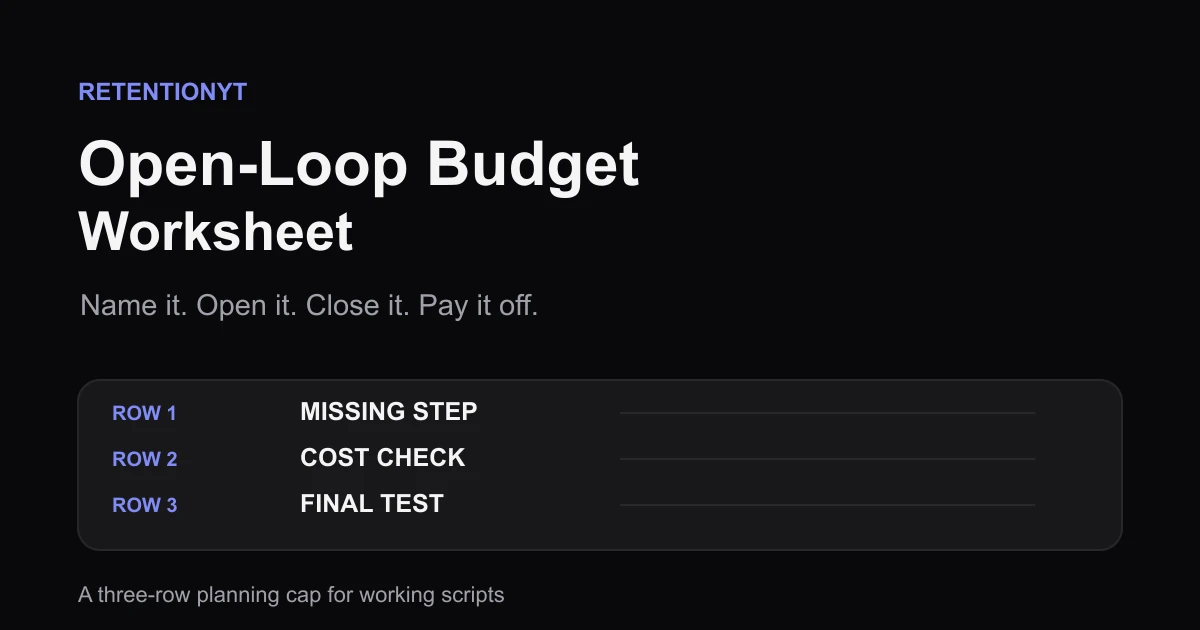
Budget your open loops on a 3-row table: name, open timestamp, close timestamp, and one-line payoff. If a fourth idea wants in, park it for the next video. Fill the worksheet before you write jokes so the jokes do not bury an unclosed promise. Use the same four fields for every promise, and make the close visible before you record.

What Open-Loop Budget Worksheet actually is (and what it is not)
An open loop is a promise that creates a reason to keep watching until a later answer, reveal, or result. The Open-Loop Budget Worksheet is the control sheet for that promise: each row records what the loop is called, when it opens, when it closes, and the one-line payoff the viewer receives.
This is a writing tool, not a YouTube report or hidden score. Three rows is a working rule of thumb, not a platform limit or retention benchmark. Move a weaker fourth promise to a later video.
| Loop name | Open timestamp | Close timestamp | One-line payoff |
|---|---|---|---|
| The missing step | 0:08 | 3:10 | Show the step that makes the workflow repeatable. |
| The cost check | 1:42 | 5:20 | Compare the cheap option with the time-saving option. |
| The final test | 4:05 | 7:45 | Run the finished method on one real upload. |
The timestamps are illustrative planning values, not YouTube data. Replace them with your seconds. Each row needs a planned close and a sentence that delivers it.

It is not a list of clever teaser lines. “I will show you later” works only when the sheet names the close, proof, and payoff.
Why this shows up in YouTube Studio
Use the worksheet before filming and Studio after publishing. The current SOURCE 1 YouTube Help page, accessed August 2026 is titled Understand your YouTube video reach. It describes Reach metrics and a Studio > Content > selected video > Analytics > Reach route, not the brief’s expected audience-retention article. It does not support open-loop or retention-curve claims.
The current SOURCE 2 YouTube Help page, accessed August 2026 is titled Understand your YouTube content performance. It says Content is a channel-level tab and describes Key moments for audience retention plus typical retention comparisons for the 10 latest videos of similar length. Use those supported facts to review your planned close against your report.
The worksheet tells you what should close before Studio. If your report shows a dip near a tease, review the cut, context, proof, and payoff together before changing one writing variable.
For related reading, use How to Script a YouTube Video That Keeps Viewers Watching, YouTube Script Outline Template, and the YouTube Script Review Tool. The worksheet works without signing up.
Worked example 1: the failure
Imagine an illustrative 8-minute tutorial with one row: “The final test,” opened at 1:00, closing at 6:30 with a real-upload test. The draft adds teases at 2:10, 3:00, and 4:20, but gives them no rows or closes.
| Illustrative item | Planned value | Draft reality | Result |
|---|---|---|---|
| Open loops | 3 rows | 1 named row plus 3 untracked teases | The viewer gets more promises than the sheet can track. |
| Close points | 1 at 6:30 | Main payoff delayed while new teases appear | The close has to carry too much. |
| Payoff | One real-upload test | “I will show you later” repeated | The language stays vague instead of proving the point. |
These numbers and timestamps are illustrative, not a benchmark from SOURCE 1 or SOURCE 2. The failure is a budget failure: you can no longer tell which promise is active, which result is due, or whether the final test still earns its place.

Worked example 2: the fix
Start with the same tutorial and keep only three promises. Row one opens at 0:08 and closes when you show the missing step. Row two opens after that proof and closes with the cost comparison. Row three opens only when the viewer has enough context to care about the real-upload test, then closes with the test result.
The fix is not “add more suspense.” Make the worksheet agree with the script: write each close before its tease, and delete any line with no row. Fewer promises make the route easier to follow.
If a row needs a long detour to close, demote it. A small finished payoff beats a grand unresolved promise.
How to check this in YouTube Studio (step by step)
- List every future-facing promise, including “later,” “by the end,” or “the part most people miss.”
- Put the three strongest promises into the worksheet. Give each a name, open timestamp, close timestamp, and one-line payoff.
- Write the close sentence for row one before polishing its tease. Repeat for rows two and three.
- Read the outline aloud. If a tease appears with no row, cut it, park it for the next video, or replace a weaker row.
- Record actual open and close seconds beside the planned values.
- After publishing, open YouTube Studio and use your current analytics labels; the locked pages do not verify a worksheet-specific screen.
- If available, compare Key moments for audience retention with the row that was open or due to close. Use typical retention as a comparison for the 10 latest similar-length videos, not a universal target.
- Change one variable in the next upload. Move one close earlier, remove one tease, or make one payoff more concrete; do not change the whole worksheet at once.

Manual method works alone. An optional RetentionYT script pass can review pacing before recording; the row-and-payoff check is yours to apply.
The trap
The trap is tease inflation: transitions keep opening loops until the script contains more promises than answers. The viewer needs confidence that each mystery has a planned close.
A second trap is using a summary as the payoff. If the promise was a test, comparison, or reveal, name or show that result instead of saying “so that is the idea.”

The trap
The move
Do not use colour alone. Write BAD and GOOD, keep row names visible, and make each close specific enough for another editor to check.
What to do in the next upload
Make the worksheet the first page of the script. Write three rows before transitions, pair each open with a close, and state each payoff plainly. If it cannot fit one sentence, the loop is not ready.
Keep a parking list for fourth ideas. Revisit one when outlining the next upload or replacing a weaker row.
- I listed every future-facing promise in the draft.
- I selected no more than three active worksheet rows.
- Every row has a name and open timestamp.
- Every row has a close timestamp.
- Every row has a one-line payoff.
- I wrote the close sentence before polishing the tease.
- I parked the fourth idea instead of forcing it into this upload.
- I labelled illustrative timestamps as planning values.
- I recorded actual open and close seconds after the draft read-through.
- I will review the available Studio report after publishing.
- I will change one worksheet variable in the next test.
Where RetentionYT fits
Manual method works alone. Product shortens the review loop. RetentionYT is optional support for a pre-record script pass; it does not replace your worksheet or the analytics view available in your account.
If the promise is not on the worksheet, it does not get to stay open.
Frequently asked questions
- How do I plan open loops?
- Plan each open loop as one row with a name, an open timestamp, a close timestamp, and a one-line payoff. Keep three rows in this worksheet. Write the close before you draft the tease, then check the finished script for any promise that has no row.
- Is there a template?
- Yes. Use the three-row table in this article as a printable markdown template: loop name, open timestamp, close timestamp, and one-line payoff. Treat the timestamps as working planning values. Adjust them for your format, but do not remove the close or payoff fields.
- What if I think of a fourth loop?
- Do not squeeze it in because the idea feels exciting. Put the fourth idea in a parking note and decide whether it replaces a weaker row or belongs in the next upload. A fourth open loop is a scope decision, not a badge of ambition; protect the three promises you can actually close.
- Should payoffs be on screen?
- Put the payoff on screen when the viewer needs to verify a result, compare steps, or remember a visual detail. Keep the payoff spoken when the point is a sentence or reveal. The worksheet records the promise and close; your shot list decides whether the proof needs a visual.
- Can I reuse a loop across a series?
- You can reuse the loop structure across a series, but do not copy the promise blindly. Give each episode a new open and close, and label any returning thread so the viewer knows what carries over. A repeated format is useful; an unclosed repeated tease is not.
- How do I apply “Open-Loop Budget Worksheet” on my next upload?
- Before your next upload, make three rows, fill the close timestamps, write the one-line payoffs, and then audit every tease against a row. If a promise has no row, cut it, park it, or give it a close. Apply the worksheet before jokes and transitions hide the missing ending.
- Where in YouTube Studio do I check “Open-Loop Budget Worksheet”?
- The locked SOURCE 1 and SOURCE 2 pages do not document a product feature named “Open-Loop Budget Worksheet.” Use the worksheet as an editorial planning file, then use your current Studio analytics view to inspect retention key moments and typical retention where those reports are available. Do not look for a named worksheet metric.
- What is the most common mistake with “Open-Loop Budget Worksheet”?
- The most common mistake is opening more loops than the script can close. The creator remembers the exciting tease but forgets the payoff, so the ending feels thin even when the video has energy. Limit the table to three rows, give every row a close, and remove orphan promises.
Give your next script a second look
Paste a script into RetentionYT for suggestions on your hook, pacing, and structure. Choose the edits that serve your video, then check audience behavior in YouTube Analytics after publishing.
Get retention tips in your inbox
Occasional, practical emails on hooks, pacing, and retention. No spam.
Related posts
Part 2 vs Series Recap: Two Scripts, Two Graphs
Learn how to open YouTube Part 2 with a new stake, an eight-second recap, and a skip timestamp instead of a recap cliff for new episodes too.
Pattern of Three in Educational Scripts
Rule of three YouTube tutorial script guidance: teach three causes, three rewrites, and three timestamps, then turn a fourth point into a chapter or the next video.
Pause and Try This — When It Helps, When They Don't Come Back
YouTube pause and try this retention advice: move practice after the payoff, or make the action 10 seconds on screen so viewers can try without leaving.