On-Screen Text vs Spoken Redundancy
Should on-screen text match spoken words on YouTube? Let captions carry accessibility, then make every extra lower third add proof, direction, or a visual—not a duplicate sentence.

9 min readUpdated
In this guide
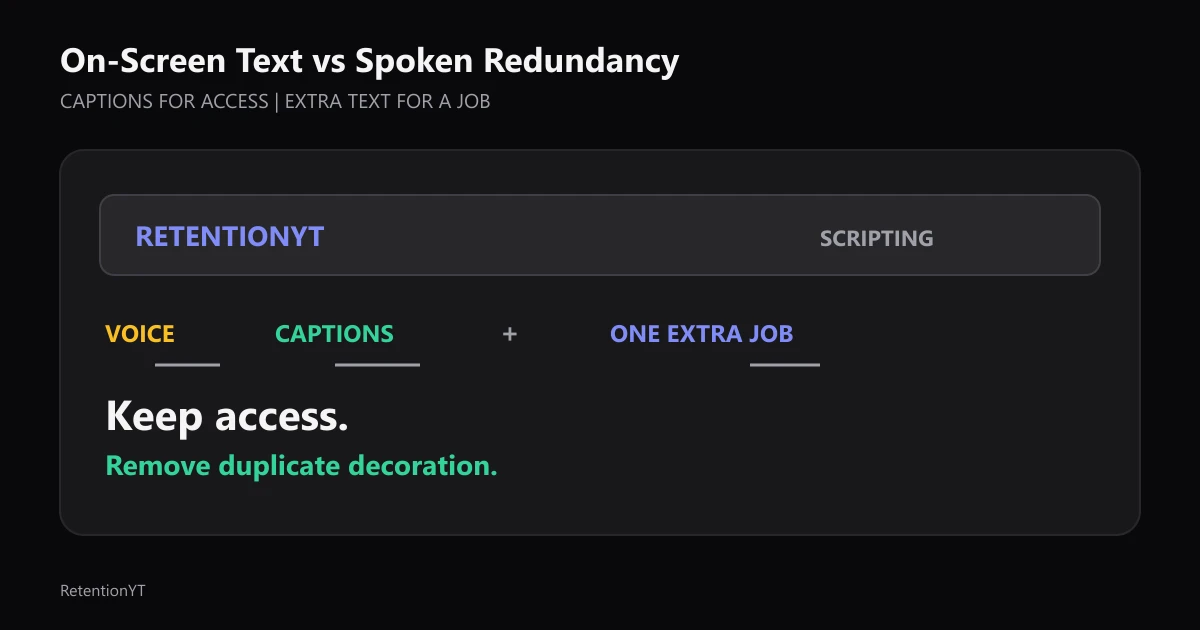
Should on-screen text match spoken words on YouTube? Captions can match speech. Extra lower-thirds should not repeat the sentence in a third font when your face or object already carries the moment. Put the formula on screen, keep required captions, and use the first 8 seconds as a clutter audit—not as a promise about a platform metric.

What On-Screen Text vs Spoken Redundancy actually is (and what it is not)
On-screen text is readable copy: captions, subtitles, labels, formulas, headlines, or lower thirds. Spoken redundancy is a decorative layer repeating narration without proof, direction, or a new relationship.
The distinction is about jobs, not shared words. A caption may repeat speech for access; a formula may repeat key terms so the viewer can inspect a relationship. The problem is repetition of both.
Before animating, ask: if the text disappeared, would the viewer lose access, a definition, a direction, or proof? If not, it is decoration. Decoration is not automatically bad, but the hook is a crowded place to spend attention on it.
These are editorial controls, not YouTube benchmarks. The five labels are Caption, Label, Proof, Direction, and Decoration. Your job is to name each layer before you decide whether it stays.
| Layer | Keep it when it does this | Remove or rewrite it when it does this |
|---|---|---|
| Caption | Carries speech or meaningful sound for access | Adds a second decorative sentence over the caption |
| Label | Names a person, object, term, or location | Repeats the sentence already spoken |
| Proof | Shows a number, formula, result, or before-after change | Uses a slogan without evidence or a visual relationship |
| Direction | Tells the eye where to look or what to compare | Adds motion without a decision to make |
| Decoration | Establishes a deliberate visual style | Keyword-stuffs the hook in a third font |
Why this shows up in YouTube Studio
Connect the edit decision to a timestamp. The locked SOURCE 1, checked in August 2026, currently describes Reach rather than audience retention. It supports the Reach snapshot of click-through rate, watch time, and views, with the path Content, selected video, Analytics, then Reach.
For retention-specific context, the locked SOURCE 2, checked in August 2026, says the Key moments for audience retention report shows how well different moments held viewers’ attention. It also says typical retention can compare the 10 latest videos of similar length. Use those reports to choose what to inspect, not to claim that one extra lower third caused a result.

Use the report to choose a timestamp, then use your script to explain the layer stack there. Test one change instead of treating a curve as a diagnosis.
Worked example 1: the failure
Imagine a tutorial that opens with a face, printed formula, captions, a logo sting, and a lower third saying, “THE 2026 RETENTION FORMULA.” The narrator says, “Use one proof layer, not three competing messages.” The caption repeats it, the banner repeats the topic, and the formula is partly hidden.
The numbers below are illustrative edit timestamps, not measured viewer behavior or a published YouTube benchmark.
| Timecode | What the viewer sees and hears | Failure in the stack |
|---|---|---|
| 0:00 | Face, logo, headline, and caption arrive together | No clear first visual job |
| 0:03 | Narrator states the one-channel rule | Caption and lower third echo the sentence |
| 0:08 | Formula appears behind the lower third | Proof is obscured by decoration |
| 0:30 | Definition arrives under another animated banner | The eye keeps switching layers |
| 1:00 | Editor introduces the real example | The opening has not established a clean hierarchy |
Every layer asks for priority, so the viewer must choose between face, caption, banner, and formula. Fix the outline: captions carry speech, the formula carries the relationship, and the face or object carries the demonstration. Turn any needed keyword into a formula label.
Worked example 2: the fix
Keep the same spoken line and the same access requirement, then give each channel one job. The face introduces the problem. Captions carry the speech. The formula shows “spoken line + proof text → one clear decision.” A small label points to the formula. Nothing else moves in the first frame.
These timestamps are also illustrative edit controls. They show where to audit the layer stack, not when viewers are guaranteed to leave or stay.

The revised frame has clear hierarchy: captions carry speech, the formula carries proof, and the label names the object. The decorative banner goes.
For a manual pass, export a still from the first 8 seconds, list the layers, and write each job in the margin. Keep Caption, Label, Proof, or Direction only when you can state the gain.
Where RetentionYT fits
Manual method works alone. RetentionYT can shorten the review loop, but it does not decide whether a decorative sentence earns space. RetentionYT is one optional checkpoint after you classify the layers.
How to check this in YouTube Studio (step by step)
Open YouTube Studio after you have written down the exact timestamp and the layer stack. Do not ask Studio to tell you what your lower third meant. Ask whether the moment deserves a closer edit review, then compare the footage against your own notes.
- Pick the video and note the timestamp you want to inspect, such as 0:08. Treat that number as an illustrative review target unless it comes from your own edit.
- Use the available Key moments for audience retention report for retention-specific inspection. SOURCE 2 describes it as a report about how different moments held viewers’ attention.
- Use the Reach path from SOURCE 1 when you need surrounding reach context: Content, selected video, Analytics, then Reach.
- Write down what was visible at the timestamp: face or object, captions, lower thirds, formula, and motion.
- Choose one change for the next upload. Remove a duplicate phrase, move the proof, or convert the lower third into a label.
- Compare the next result without claiming causation from one edit change. Your evidence is the controlled difference in the script and frame, not a universal rule.

Watch the same five seconds with sound on and off. Speech and captions should align; without sound, proof and direction should still make sense. If the only useful text is what you already heard, remove the extra layer.
The trap
The trap is calling a decorative lower third a caption because it appears near the bottom of the frame. A caption carries speech or meaningful sound. A lower third identifies, defines, or directs. They may share a word, but they do not share the same job.
The trap
The move

Another trap is styling every layer alike. Keep caption styling consistent, give proof a stable position, and point labels to their objects. Do not hide required access text; remove the decorative duplicate.
What to do in the next upload
Make the decision in the outline. Copy the first 8 seconds into a review note, list the visible layers, and write one job beside each.
- Mark every layer as Caption, Label, Proof, Direction, or Decoration.
- Keep captions for speech and meaningful sounds your viewer needs.
- Keep a label only when it names the person, object, term, or location.
- Keep proof text when it shows a formula, number, result, or comparison.
- Keep direction text only when it tells the eye what to inspect next.
- Remove a decorative phrase when it repeats the spoken sentence.
- Ban keyword-stuffed lower thirds in the first 8 seconds as an editorial rule.
- Export a still at the first 8-second checkpoint and inspect the hierarchy.
- Watch the checkpoint with sound on and sound off.
- Record the Studio timestamp and the exact edit change you will test next.
- Use the script review tool after your manual classification, not instead of it.
- Use How to Script a YouTube Video That Keeps Viewers Watching and the YouTube script outline template to place the proof layer in the larger script.
Your rule is simple: captions may match speech; extra text must add a job. Let the formula match the spoken words when it shows their relationship. Cut a lower third that only repeats the topic.
If the text has no job, it is asking the viewer to do yours.
Before export, freeze the first 8 seconds and read the frame as a new viewer. Keep access and proof; remove duplicate decoration.
Frequently asked questions
- Should I caption the whole video?
- Use captions for the spoken audio and meaningful sounds your viewer needs to follow. That is different from placing a second decorative sentence over the video. Let the caption track carry access, then reserve extra on-screen text for a formula, label, direction, or proof that the voice and captions do not already deliver.
- Do lower thirds help retention?
- A lower third helps when it identifies a person, defines a term, or points to a useful detail. It does not automatically help because it exists. If it repeats the narration word for word in a third font, test removing it. Keep the version that makes the next visual decision clearer without competing with the subject.
- Is repeating the hook on screen good?
- Repeat the hook only when the text changes the viewer’s task. A spoken promise plus the same promise in a banner is duplicate load. A spoken promise plus a highlighted number, object label, or before-after formula gives the eye a job. Treat the first eight seconds as an illustrative editing test, not a platform benchmark.
- What about accessibility captions?
- Accessibility captions can match the speech because their job is to provide the spoken information in text. Keep them synchronized and readable, then treat decorative text as a separate layer. If the visual text contains information not spoken aloud, make that information explicit rather than hiding it behind a repeated caption.
- Can text in the first 8 seconds hurt?
- It can hurt clarity when a headline, caption, logo, keyword strip, and animated lower third all compete for the same first frame. Use the first 8 seconds as a rule-of-thumb audit: keep the hook, keep required captions, and remove any extra phrase that does not add proof or direction. Do not present this as measured YouTube data.
- How do I apply “On-Screen Text vs Spoken Redundancy” on my next upload?
- Mark every text layer in the outline as Caption, Label, Proof, Direction, or Decoration. Keep Caption and required meaning. Keep Label, Proof, or Direction only when it adds information. Delete Decoration when it repeats the voice. Then watch the first 8 seconds with sound on and off to confirm that the visual layer still has one clear job.
- Where in YouTube Studio do I check “On-Screen Text vs Spoken Redundancy”?
- There is no single Studio report named for this editing choice. Use the video’s available Key moments for audience retention report to inspect how moments held attention, and use Reach or Content reports for surrounding context. Compare the timestamp against your script and edit notes; Studio can show a moment to inspect, not explain which text layer caused it.
- What is the most common mistake with “On-Screen Text vs Spoken Redundancy”?
- The common mistake is treating every visible word as a caption or every caption as decoration. Captions serve access; labels and formulas serve understanding; duplicate lower thirds serve neither when they only echo the voice. Name the layer’s job before you animate it. If you cannot name the job, remove the layer or rewrite it as proof.
Give your next script a second look
Paste a script into RetentionYT for suggestions on your hook, pacing, and structure. Choose the edits that serve your video, then check audience behavior in YouTube Analytics after publishing.
Get retention tips in your inbox
Occasional, practical emails on hooks, pacing, and retention. No spam.
Related posts
Open-Loop Budget Worksheet
Use a YouTube open loop planner worksheet with three rows, open and close timestamps, and one-line payoffs so every tease has a planned ending.
Part 2 vs Series Recap: Two Scripts, Two Graphs
Learn how to open YouTube Part 2 with a new stake, an eight-second recap, and a skip timestamp instead of a recap cliff for new episodes too.
Pattern of Three in Educational Scripts
Rule of three YouTube tutorial script guidance: teach three causes, three rewrites, and three timestamps, then turn a fourth point into a chapter or the next video.