Podcast Clip to YouTube: What to Cut so the Graph Doesn't Stair-Step
Edit podcast clips for YouTube retention by cutting podcast manners, opening on the claim, and smoothing the stair-step graph left by repeated conversation beats.

11 min readUpdated
In this guide
Podcasts start with manners. YouTube starts with a claim. Cut the hello, the tech check, and the “as I said on the last episode.” If your graph drops in similar steps every 90 seconds, treat that pattern as leftover podcast timing, not a verdict. Add an 8-second context VO only when a new viewer needs the missing setup, then get back to the fight.

What Podcast Clip to YouTube actually is (and what it is not)
Podcast footage is built for continuity between people who already know the conversation. A YouTube clip is built for a viewer who may have arrived cold, with no patience for the room’s warm-up. The conversion is not “upload the best ten minutes.” It is a small editorial system that preserves the claim and removes the social glue around it.
Start by marking the first sentence that a stranger can understand. Then mark everything the sentence assumes: who is speaking, what problem is being discussed, and why the viewer should care now. Keep the minimum context that closes those gaps. Cut greetings, microphone checks, host cross-talk, repeated agreement, and phrases that point backward to an unavailable episode.
The stair-step graph is a working diagnosis. If your line falls at similar intervals, look for similar editorial events at those timestamps: a host handoff, a recap, a sponsor-shaped pause, a return from a tangent, or a repeated “one more thing.” The shape does not prove the cause. It tells you where to match the graph against the transcript and timeline.
| Podcast habit | YouTube edit move | Viewer-facing job | Keep or cut |
|---|---|---|---|
| Greeting and tech check | Open on the strongest claim | Establish relevance immediately | Cut |
| Host cross-talk | Keep one clean question or reaction | Make the exchange legible | Usually cut |
| “As I said earlier” | Restate only the missing noun | Restore context without a detour | Rewrite |
| Long pause after a point | Cut or cover with purposeful visual | Preserve momentum | Usually cut |
| Repeated recap | Move the clearest version earlier | Make progress visible | Compress |
This is not a demand to make every clip frantic. A pause can carry emotion, proof, or a change in meaning. Keep it when the pause has a job. Remove it when it is only the residue of two people sharing a room.
The 8-second VO and 90-second inspection interval are editorial starting points, not YouTube-published thresholds. The goal is not to make every upload obey them; the goal is to give you a repeatable first pass. Change the values when your footage gives you a better reason.
Edit the conversation for the viewer who was not in the room.
A clean cut has a visible promise. The first sentence says what the viewer will learn, see, or decide. The next beat earns that promise with evidence, a disagreement, a demonstration, or a specific consequence. If the clip cannot state one promise, split it into two clips instead of hiding the ambiguity under a faster edit.

Where RetentionYT fits
Manual method works alone. Product shortens the loop. Use RetentionYT once you have a transcript and want a faster review of possible pacing gaps; the editorial decisions still belong to you.
Why this shows up in YouTube Studio
You need the report before you can diagnose the edit. The locked SOURCE 1, accessed in August 2026, currently describes the Reach tab as a snapshot of metrics such as click-through rate, watch time, views, and more. Its computer instructions show YouTube Studio, Content, the selected video, Analytics, then Reach, and note that some reports may not be available on mobile.
The locked SOURCE 2, accessed in August 2026, says the channel-level Content tab gives an overview of how the audience finds content, what it watches, and how it interacts with content. Its current metrics table defines engaged views, average view duration, average percentage viewed, and watch time. Those definitions help you name the numbers; they do not create a universal retention target for a podcast cut.
The brief labels SOURCE 1 “Audience retention,” but the opened URL currently renders “Understand your YouTube video reach.” It also does not expose the brief’s asserted typical/comparison-line wording. That conflict matters: this article uses only the verified navigation and metric context, while the stair-step diagnosis and edit method remain editorial guidance.

Read the graph as a timestamp index. A first drop near the opening sends you to the first claim, title promise, and first frame. Repeated drops send you to repeated structures. A late fall may be an outro cue, a final recap, or the moment the clip has already delivered its promise. Check the edit before you invent a new target.
Worked example 1: the failure
This is an illustrative example with invented numbers, not a YouTube dataset and not a real creator account. A podcaster cuts a 40-minute discussion down to 12 minutes by removing whole topics but leaves the opening greeting, two hosts talking over each other, and three “as I said earlier” references. The resulting line loses viewers in similar-looking steps at 0:42, 2:10, 3:41, and 5:12.
| Timestamp | What remains in the cut | Illustrative viewers retained | Likely edit question |
|---|---|---|---|
| 0:00 | Greeting before the claim | 100% illustrative | Can the claim start first? |
| 0:42 | Cross-talk and a room laugh | 74% illustrative | Is one clean exchange enough? |
| 2:10 | “As I said earlier” plus recap | 61% illustrative | What noun or context is missing? |
| 3:41 | Host handoff and long pause | 49% illustrative | Does the handoff add meaning? |
| 5:12 | Repeated setup before proof | 38% illustrative | Can proof arrive before the recap? |
The failure is not simply that the clip is 12 minutes. The failure is that the source conversation’s timing survived the cut. Each step is a prompt to compare the timestamp with the transcript and waveform. If the same kind of residue appears at each drop, fix the edit pattern rather than adding louder music or more captions.
The creator also treats the first visible drop as proof that the greeting alone caused the loss. That is too certain. The title promise, first frame, speaker clarity, and the first sentence may all contribute. Cut the greeting, then test the next version while keeping a record of the change.
Worked example 2: the fix
The second pass is also illustrative. The editor opens on the strongest claim, adds an 8-second context VO because the original conversation starts mid-argument, keeps one clean host question, and moves the proof beat before the recap. The editor also cuts the repeated handoffs at 2:10 and 3:41 instead of covering them with b-roll.
After export, the editor compares the new graph with the first version and labels the observed values as the channel’s own report, not a platform benchmark. If the revised line is smoother at those timestamps, the edit has a useful signal. If it is not, replay the matching sentences and test one different change. Do not call the method proven from one upload.

How to check this in YouTube Studio (step by step)
Use the YouTube scripting guide when you need a broader hook or pacing framework, and the script outline template when you need timecodes and jobs before you edit. The manual method below still works without signing up.
- Write the clip’s one-sentence promise. If the sentence needs the entire episode to make sense, narrow the clip or add only the missing context.
- Mark the first claim in the transcript and move it toward 0:00. Remove the greeting, tech check, and room language unless one of them is the actual story.
- Highlight every cross-talk exchange, backward reference, recap, and pause. Give each a job: clarify, prove, change direction, or create emotion.
- If the clip begins in the middle of a dispute, draft an editorial context VO of about 8 seconds. Label that as a starting point, then cut it if the claim already lands cold.
- Add timestamps to every remaining section. Flag repeated intervals such as 0:42, 2:10, 3:41, and 5:12 as illustrative inspection points, not universal thresholds.
- Open YouTube Studio, choose the video, select Analytics, and use the report surface available to your account. SOURCE 1’s verified computer path goes through Content, selected video, Analytics, then Reach.
- Match every visible drop with the transcript and edit timeline. Ask what the viewer encountered at that exact second before deciding what to cut.
- Export one controlled revision. Change the opening or the repeated residue first; do not change the hook, title, captions, music, and runtime all at once.
- Save the before-and-after timestamps, the edit change, and the report access date. Use the next upload to test whether the pattern repeats.
The graph does not edit the clip for you. It tells you where to ask a better question. If you want an optional pre-record or pre-publish review, the script review tool can shorten the loop, but the manual transcript-to-timestamp check remains the source of your editorial judgment.
The trap
The trap is exporting the podcast’s social rhythm as if it were a YouTube structure. Viewers did not attend the recording. They do not know why two hosts pause, why a speaker says “as I said earlier,” or why the next question takes 15 seconds to arrive. A clip that preserves those manners may feel natural to the hosts and slow to everyone else.
The trap
The move

A face, waveform, or caption style cannot rescue a missing promise. Use visuals to clarify who is speaking, show proof, or create a deliberate change in attention. If a visual exists only to hide a pause, revisit the sentence or cut instead.
What to do in the next upload
Before you export, listen once as someone who never heard the episode. Write down the first sentence you understand, the first moment you can name the stakes, and every timestamp where the conversation resets. Then make the smallest edit that makes the claim arrive sooner.
- Write one clear viewer-facing claim.
- Mark the first usable claim in the transcript.
- Cut greetings, tech checks, and room warm-up.
- Remove cross-talk unless it changes the meaning.
- Rewrite backward references for a new viewer.
- Add context VO only when the clip starts in the middle.
- Flag repeated drops and match them to transcript events.
- Keep one proof beat before a recap.
- Preview the edit without music or captions once.
- Record the edit change and Studio access date.
- Test one controlled revision on the next upload.
A podcast clip succeeds when the viewer can enter late and still understand the promise, the tension, and the payoff. Cut the manners, keep the meaning, and treat every repeated step as a timestamp worth investigating. The goal is not a perfectly smooth line. The goal is a cleaner reason to stay.
Frequently asked questions
- How do I edit podcast clips for YouTube?
- Start by marking every greeting, tech check, cross-talk exchange, recap, and phrase such as “as I said earlier.” Cut those before you change music or captions. Open on the claim, add only the context a new viewer needs, and use a small visual or sentence reset when the clip’s graph repeatedly drops at the same interval.
- Why does my clip graph look like stairs?
- A stair-step shape is a working diagnosis, not a YouTube metric label. It often means the cut kept recurring podcast beats—topic handoffs, host reactions, ad-shaped pauses, or repeated setup—at regular intervals. Mark each drop’s timestamp, compare it with the transcript, and test whether removing the repeated beat makes the next version flow more continuously.
- Should I add a new hook on VO?
- Use a new voice-over hook only when the clip needs context that the original conversation assumes. Keep it short, around 8 seconds as an editorial starting point, and make it state the claim or stakes. If the opening already makes sense to a first-time viewer, cut straight to the strongest sentence instead of covering the clip with extra narration.
- How long should a clip be?
- There is no honest universal runtime for every podcast clip. Choose the shortest cut that delivers one clear claim, its necessary proof, and a satisfying close. Start with the intended viewer promise, then remove pauses and side roads until each remaining section has a job. Compare the published result with your own Studio report rather than chasing a global duration target.
- Do I need a face?
- No. A face can help orientation, but it is not a substitute for a clear opening. If the clip works as audio, support it with readable captions, an intentional first frame, and visuals that clarify the speaker or evidence. Test the first 30 seconds and the full curve; keep the face when it adds meaning, not simply because the source footage has it.
- How do I apply “Podcast Clip to YouTube” on my next upload?
- Choose one claim, mark the first usable sentence, and cut greetings, cross-talk, and repeated setup. If the conversation starts in the middle, write an editorial 8-second context VO, then return to the claim. Build a transcript-to-timestamp map, remove recurring podcast beats, preview the cut, and compare the next graph with the edit decisions you recorded.
- Where in YouTube Studio do I check “Podcast Clip to YouTube”?
- Open YouTube Studio, choose the video, select Analytics, and use the report available to your account. The locked YouTube Help page currently documents a computer path through Content, the selected video, Analytics, and Reach, while noting that some reports may not be available on mobile. Use the labels and report surface your account actually shows.
- What is the most common mistake with “Podcast Clip to YouTube”?
- The common mistake is exporting the conversation instead of editing for a new viewer. The cut preserves greetings, host overlap, references to earlier context, and regular podcast pauses, then tries to repair the result with captions. Start with the claim, supply only missing context, and treat every repeated stair-step drop as a timestamp to investigate.
Give your next script a second look
Paste a script into RetentionYT for suggestions on your hook, pacing, and structure. Choose the edits that serve your video, then check audience behavior in YouTube Analytics after publishing.
Get retention tips in your inbox
Occasional, practical emails on hooks, pacing, and retention. No spam.
Related posts
Quiz-to-Camera Without Losing Search Traffic
Use a YouTube quiz to camera without losing search traffic: answer the question within 20 seconds, replace “comment below,” and check the result in Studio.
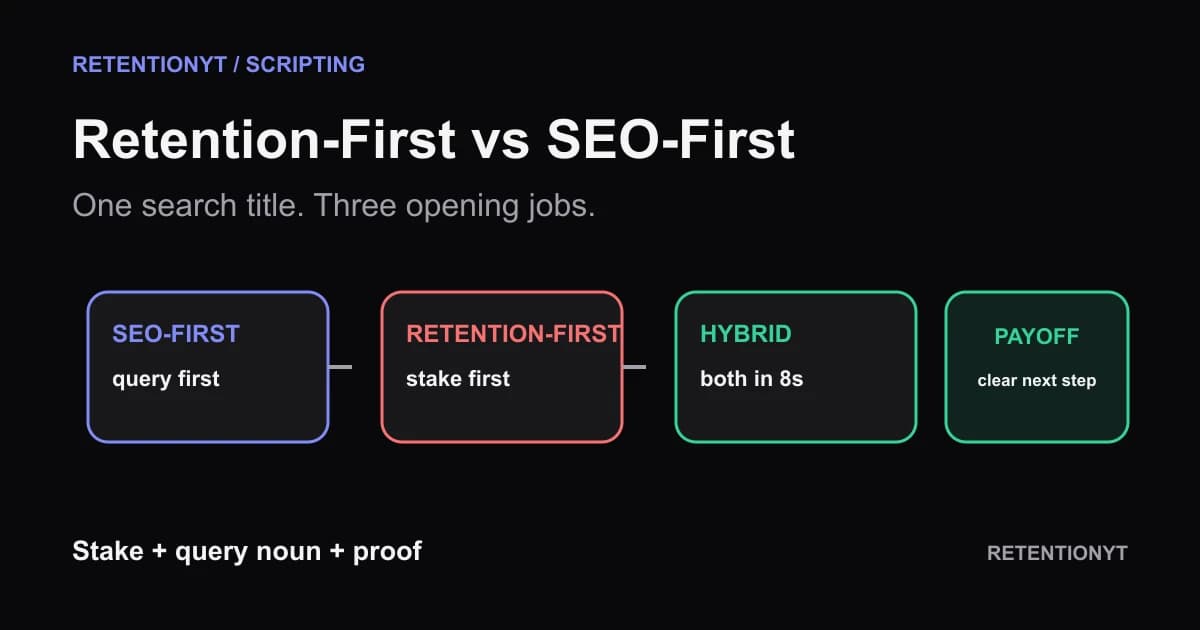
The Retention-First Outline vs the SEO-First Outline
Build a YouTube outline for search vs retention without choosing one audience: compare SEO-first, retention-first, and a hybrid that names the query inside the first 8 seconds.
Screen-Recording Voiceover: WPM and Pause Marks
Learn how to script a screen recording voiceover at a slower 120–140 WPM, add pause marks for clicks, and guide attention without narrating every cursor move.