Quiz-to-Camera Without Losing Search Traffic
Use a YouTube quiz to camera without losing search traffic: answer the question within 20 seconds, replace “comment below,” and check the result in Studio.

8 min readUpdated
In this guide
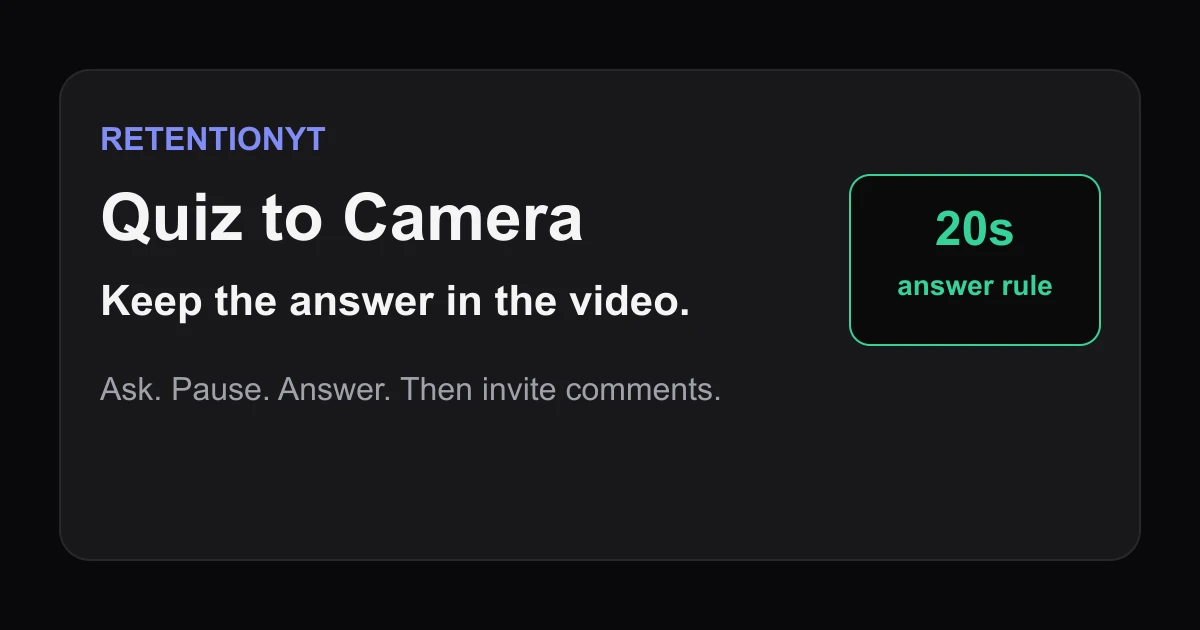
Ask the question to camera only when you can answer it in the next 20 seconds. “Guess in the comments” moves the payoff elsewhere. Give a thinking beat, reveal the answer, and make comments optional afterward.

What Quiz-to-Camera Without Losing Search Traffic actually is (and what it is not)
Quiz-to-camera is a pattern interrupt, meaning a deliberate change in the viewer’s expected rhythm that asks for a small decision. You look into the lens, ask one answerable question, give a short thinking beat, and reveal the answer in the video. The point is to make the viewer notice the next idea and pay it off.
The search-safe rule is simple: keep the answer in the video. Comments can invite examples after the reveal, never replace it.
| Part | What you say or show | What the viewer gets |
|---|---|---|
| Ask | One precise question tied to the search problem. | A clear thing to think about. |
| Pause | A short, scripted thinking beat. | Space to predict without losing the thread. |
| Answer | Reveal the correct answer in speech or text. | The payoff inside the video. |
| Comment | Optional prompt after the reveal. | A way to add context, not a missing lesson. |
Use a checkable question. “What would you do?” is broad; “Which opening keeps the promise visible?” gives the viewer a decision. Then show the choice, edit, or exception.
Where RetentionYT fits
Manual method works alone. Product shortens the loop. Use RetentionYT for a second pass on the question and reveal, but do not require signup to apply this method.
Six question patterns you can adapt
Example 1: “Which opening makes the promise clearer: A or B?” Example 2: “What would you cut before the first explanation?” Example 3: “Which screenshot proves the claim?” Example 4: “Where does this edit lose the viewer’s question?” Example 5: “Which step should happen before you record?” Example 6: “What changes if the viewer already knows the basic rule?” These are script prompts, not performance benchmarks.
Keep the answer close. If setup runs long, narrow the question until a useful answer fits within 20 seconds. This is a rule of thumb, not a YouTube guarantee.
Why this shows up in YouTube Studio
Use Studio to separate discovery from attention. The locked SOURCE 1 page says the Reach tab helps you understand how viewers find content and snapshots click-through rate, watch time, views, and more. Its path is Studio, Content, selected video, Analytics, then Reach.
The locked SOURCE 2 page says the Content tab summarizes how your audience finds, watches, and interacts with content. Its “Key moments for audience retention” report shows how different moments held attention and can compare your 10 latest videos of similar length.
Mark the question, reveal, and first comment prompt in your edit notes. Compare them with the available report, treating graph changes as investigation clues—not proof of causality.

The current YouTube Studio destination may ask you to sign in, and reports can depend on your account and interface. Follow the labels visible on your review date.
Worked example 1: the failure
Imagine an illustrative search tutorial called “Fix a Blurry YouTube Thumbnail.” The creator asks, “Do you know what causes blur?” Then the video says, “Tell me in the comments and I’ll reveal it later,” before showing unrelated screenshots.
The quiz sounds interactive, but has no nearby in-video payoff. A search viewer must wait through a detour or open a discussion without knowing when the answer arrives. The missing answer is the problem.
| Timestamp | Illustrative edit | Illustrative risk to inspect |
|---|---|---|
| 0:00 | Question is asked to camera. | The viewer does not know when the reveal comes. |
| 0:08 | The creator repeats the comment prompt. | Illustrative pause, not YouTube data. |
| 0:20 | A screenshot detour begins. | The search answer is still hidden. |
| 1:10 | The answer finally appears. | Illustrative delay; inspect your own report. |
These timestamps are illustrative, not YouTube benchmarks. The failure is structural: the video asks for participation before it supplies the information. The comment thread cannot be the only route to the answer.
Worked example 2: the fix
Rewrite the opening as: “Which causes thumbnail blur: a low-resolution export or a soft source image? Choose one. I’ll show you the answer in the next 20 seconds.” Pause, show both choices, and reveal the answer with its fix before asking which file caused the problem.
The question creates a prediction, the pause interrupts rhythm, and the reveal resolves the task. Comments can follow with exceptions.

The structure can serve a tutorial, review, explainer, or Short: quiz a diagnostic step, trade-off, misconception, or next action. For a Short, remove words that do not help the question or answer fit. These are illustrative applications, not platform promises.
For a second opinion on wording, use the YouTube script review tool after you have drafted the answer yourself. The tool can help you inspect clarity; it cannot replace the requirement to deliver the reveal.

How to check this in YouTube Studio (step by step)
- Write the exact search question your video answers. If the question cannot be answered in one or two sentences, split it before filming.
- Record the spoken question and note its timestamp. Mark the end of the thinking beat and the exact frame or sentence where the answer appears.
- Open the video’s available Analytics and audience-retention view. Inspect the question, pause, answer, and comment prompt as separate checkpoints.
- Use the Content or Reach context available in your account to understand how the video was found and what report you are reading. Do not assume a report label that is not visible.
- Compare the opening with a relevant prior upload or your own notes when the comparison is available. Treat differences as clues, not causal proof.
- Write one next-upload change: narrow the question, shorten the pause, move the answer earlier, make the reveal more readable, or move the comment prompt after the payoff.
Keep it manual: ask, pause, answer, and review without signup. Comments are an extension, not a locked door.
The trap
The trap is confusing participation with payoff. “Comment your guess and wait” leaves the answer missing; a five-minute reveal is too broad for a 20-second quiz.
The trap
The move
Use the bad version as a red flag. Move any comment prompt after the answer and replace an uncheckable question with a narrower choice or diagnosis.

What to do in the next upload
Put the quiz in the outline, not in the edit as a last-minute flourish. The YouTube script outline template can help you assign a time to the answer, while how to script a YouTube video gives you a broader scripting reference.
- Start with the exact search question.
- Narrow it until the answer is clear and useful.
- Ask one question to camera.
- Give a short, intentional thinking beat.
- Put the answer in speech or on-screen text.
- Keep the answer inside the next 20 seconds as a rule of thumb.
- Record the question, pause, answer, and comment timestamps.
- Move the comment invitation after the core payoff.
- Review the available retention report without claiming causality.
- Label illustrative numbers as illustrative.
Before publishing, say the answer aloud. If the viewer must leave for the lesson, rewrite the quiz. If the answer is clear and useful, publish, inspect the report, and carry one lesson into the next script.
Ask for a prediction, then earn attention by answering inside the video.
Frequently asked questions
- Do questions to camera help retention?
- They can create a useful pause when the question is clear and the answer arrives quickly. Treat that as a scripting hypothesis, not a guaranteed Studio result. Ask one question, show the viewer what to notice, answer it within your planned window, and compare the finished opening with your own prior uploads.
- Will search viewers comment?
- Some viewers may comment, but you cannot make a comment thread the lesson’s payoff. A search viewer arrived for an answer, so give the answer in the video first. Use a comment prompt as an optional follow-up after the useful information, not as a gate that makes the viewer leave the video.
- Should I pause for answers?
- Pause briefly when the pause is part of the quiz, then reveal the answer on camera or on screen. A long silent gap asks the viewer to do work without knowing when the payoff arrives. Mark the pause in your script, keep the reveal near it, and remove the pause if it makes the explanation feel stalled.
- How fast must I answer my own quiz?
- For this method, use the next 20 seconds as a rule of thumb from the brief, not as a platform guarantee. Give the question, a short thinking beat, and the answer before the viewer must search comments. If the topic needs more context, narrow the question instead of delaying the reveal.
- Is this good for Shorts?
- It can fit a Short when the question, thinking beat, and answer are all easy to follow in a small frame. Treat the format as an editing constraint, not proof of better retention. Put the answer in the video, use readable text, and review the result against your own Shorts rather than a borrowed benchmark.
- How do I apply “Quiz-to-Camera Without Losing Search Traffic” on my next upload?
- Choose the search question first, then write the answer before the comment prompt. Ask the question to camera, give viewers a brief thinking beat, reveal the answer within 20 seconds, and only then invite a useful comment. Mark each timestamp in your outline so the edit cannot hide the payoff.
- Where in YouTube Studio do I check “Quiz-to-Camera Without Losing Search Traffic”?
- There is no named Studio setting for this phrase. Review the video’s available audience-retention report around the question, pause, and answer, then use the Content or Reach reports available in your current account for context. Record what you actually see on the review date and do not turn a visual clue into a causal claim.
- What is the most common mistake with “Quiz-to-Camera Without Losing Search Traffic”?
- The most common mistake is making the comments the answer: “guess below and I will reveal it later.” That delays the value a search viewer came for. Ask a precise question, keep the pause short, reveal the answer in the video, and use comments afterward for examples, corrections, or follow-up discussion.
Give your next script a second look
Paste a script into RetentionYT for suggestions on your hook, pacing, and structure. Choose the edits that serve your video, then check audience behavior in YouTube Analytics after publishing.
Get retention tips in your inbox
Occasional, practical emails on hooks, pacing, and retention. No spam.
Related posts
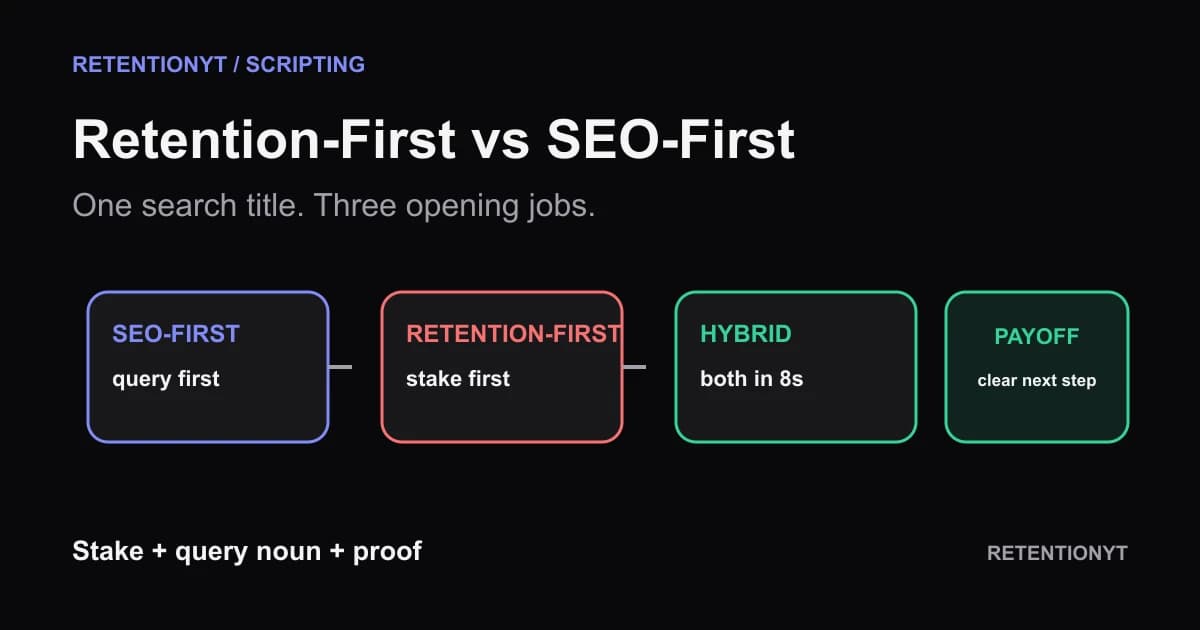
The Retention-First Outline vs the SEO-First Outline
Build a YouTube outline for search vs retention without choosing one audience: compare SEO-first, retention-first, and a hybrid that names the query inside the first 8 seconds.
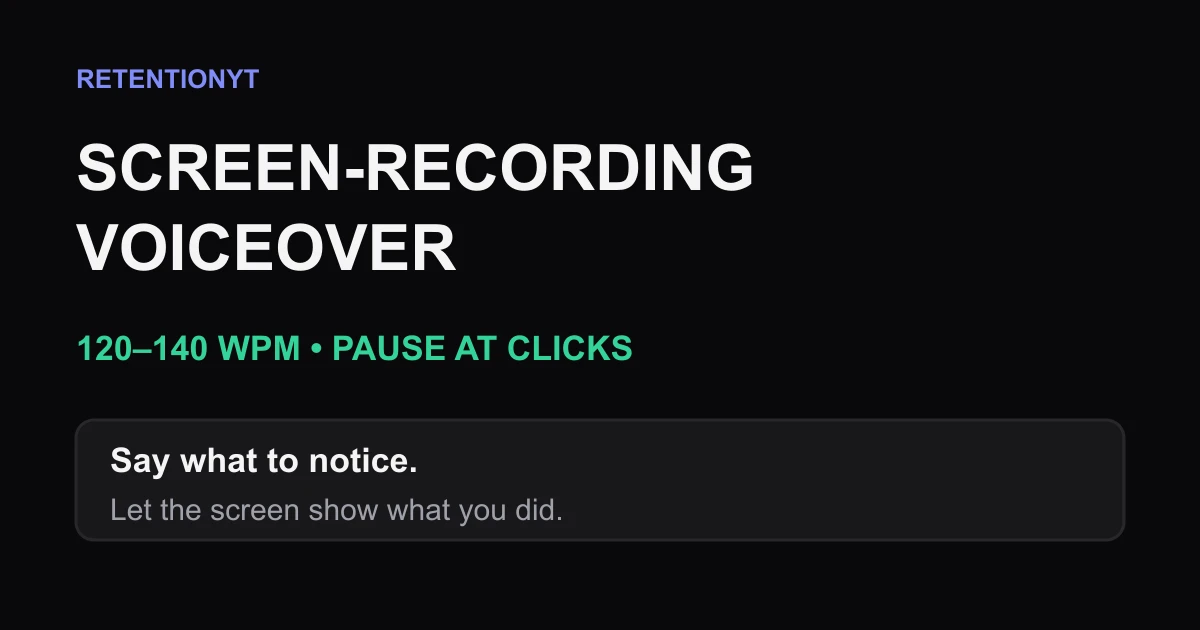
Screen-Recording Voiceover: WPM and Pause Marks
Learn how to script a screen recording voiceover at a slower 120–140 WPM, add pause marks for clicks, and guide attention without narrating every cursor move.
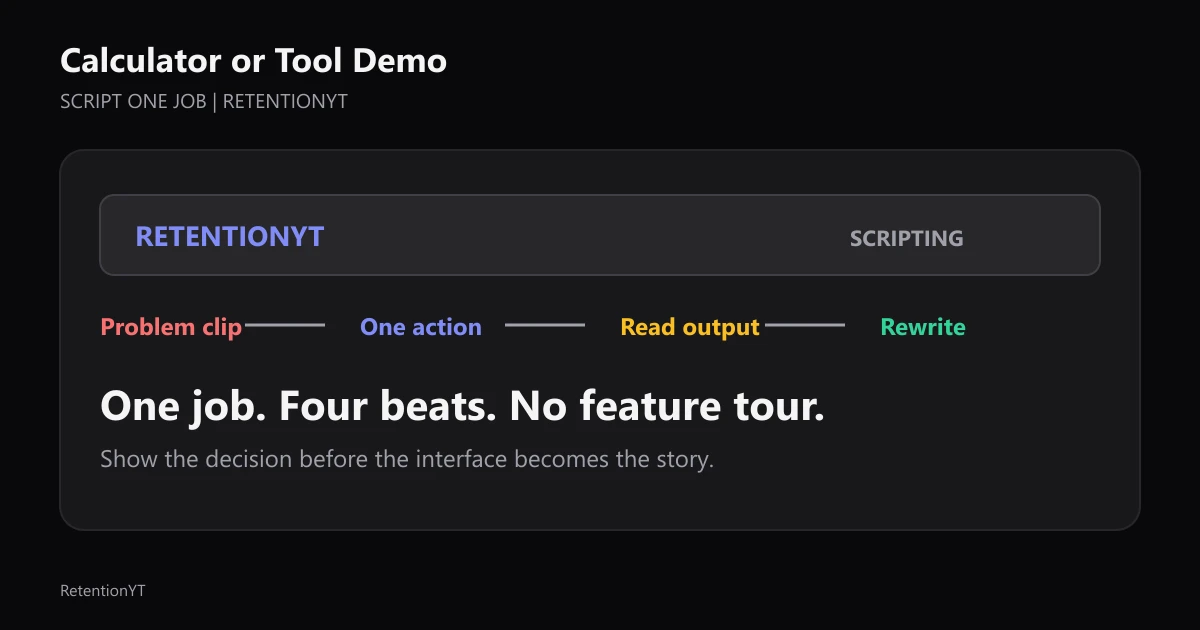
How to Script a Calculator or Tool Demo Without a Mid-Video Slump
Learn how to script a calculator or tool demo around one job, timestamp each click, read the output aloud, and rewrite before a feature tour drains your retention.