Voiceover vs On-Camera: When the Graph Prefers Each
Voiceover vs talking head YouTube retention is not a winner-takes-all choice. Pick face, voiceover, or hybrid by video job, then test the handoff in Studio.

10 min readUpdated
In this guide
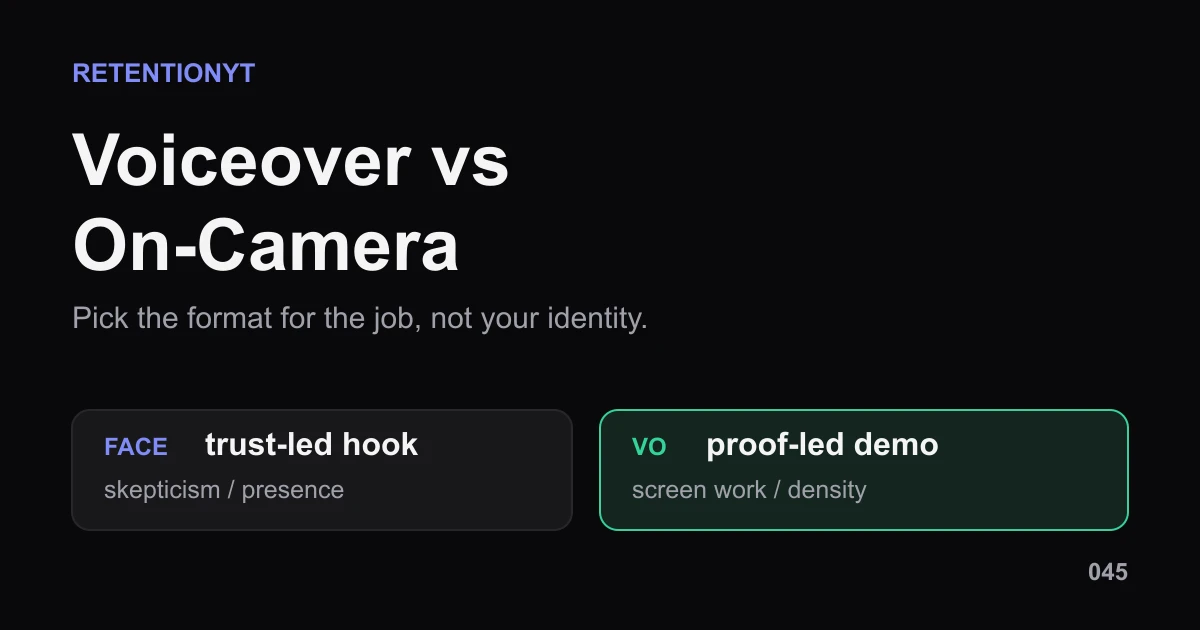
There is no universal winner between voiceover and on-camera. For a skeptical claim, a face may make the first 8 seconds feel accountable; for screen work, voiceover may keep the proof visible. Those are editorial rules of thumb, not YouTube preferences. Pick the format for the video job, then write the handoff so the next proof arrives on time.

What Voiceover vs On-Camera actually is (and what it is not)
Voiceover means the viewer hears you while the screen carries the visual. On-camera means your face carries the delivery while the viewer watches you speak. Hybrid means you change lanes inside one video: face for the claim, voiceover for the demo, and face again for the decision. The format is delivery, not a moral identity.
Use three questions before you pick a lane. What must the viewer trust? What must the viewer see? What must the viewer understand before the next cut? A face-led opening can answer trust, a voiceover demo can answer sight, and a hybrid can keep the transition explicit. If one format tries to do every job, it often creates dead space or visual overload.
| Format | Best job to start with | Main risk to remove |
|---|---|---|
| On-camera | Make a claim feel accountable and human | A face blocks proof the viewer needs to see |
| Voiceover | Explain a screen, process, or dense sequence | The narration feels detached from the evidence |
| Hybrid | Move from trust to visible proof and back | The switch arrives without orientation |
Why this shows up in YouTube Studio
You need Studio for two different checks: the report path and the viewer response. The locked SOURCE 1 page currently identifies itself as YouTube video reach. It documents a path through YouTube Studio, Content, the selected video, Analytics, and Reach, where YouTube describes traffic sources and metrics such as click-through rate, views, average view duration, and watch time 1 (August 2026).
The locked SOURCE 2 page is more directly useful for this article’s retention check. It says that, under Videos, the Key moments for audience retention report shows how different moments held viewers’ attention, and that typical retention can compare your 10 latest videos of similar length 2 (August 2026). That is a report description, not evidence that one format wins across channels.
The sources also expose a brief-level conflict. The brief labels SOURCE 1 as Audience retention and assigns it the graph and key-moments facts, but the opened URL is a Reach page. SOURCE 2 is the page that contains the current key-moments and typical-retention wording. The article follows the opened pages, and the conflict is recorded in 00-HANDOFF.txt rather than silently corrected.
Where RetentionYT fits
Manual method works alone. Product shortens the loop. Use RetentionYT to compare the hook, format handoff, and proof before you record, but you can run the method with a script, a timer, and your Studio analytics.
Worked example 1: the failure
Take an illustrative 8-minute tutorial about fixing a settings problem. The creator opens on camera with a broad promise, stays face-first for 18 seconds, and then switches to a screen recording at 00:18. The chapter, title, and spoken line all say the viewer will see the fix, but the first visible proof is still 10 seconds away.
The format is not wrong. The handoff is late. A viewer who clicked for a screen result receives a face, a second promise, and a delayed cursor path. A viewer who needed confidence in the creator receives no concise reason to believe the demo will solve the problem. One opening tries to serve trust and proof without choosing the order.
The numbers in this table are illustrative, not YouTube data. They show how to inspect the first 30 seconds around a format decision.
| Checkpoint | Illustrative viewers remaining | What the format communicates |
|---|---|---|
| 00:00 opening claim | 1,000 | The creator is making a promise |
| 00:08 second promise | 910 | The proof is still deferred |
| 00:18 screen switch | 820 | The useful visual begins now |
| 00:30 first setting shown | 770 | The demo finally earns the click |
The failure is a job-order problem, not a face-versus-voice verdict. Compress the claim, move the proof earlier, or announce the switch: “Now watch the setting that proves it.”

Do not read the indigo or emerald line as a target. The visual is a diagnosis board: one path gives the face more room before proof, and one path puts the proof earlier. SOURCE 2 lets you inspect key moments and typical retention comparisons; it does not let you convert these illustrative values into a universal format benchmark [2].
Worked example 2: the fix
Keep the same illustrative tutorial and the same promise. Record a hybrid opening: “I’ll show the setting that fixed this; first, here is the mistake to avoid.” Stay on camera for that sentence, then switch to the screen at 00:06 and let voiceover name the control as you open it. Return on camera only after the viewer has seen the change you promised.
The fix puts each format beside the job it serves. Your face handles the accountable claim, your voice handles the moving interface, and the screen carries the proof. The switch is not a surprise because the spoken line tells the viewer what to look for. If your niche does not need a face for trust, cut the face and keep the same proof-first structure as voiceover.
You want a cleaner handoff, not a prettier curve. Use the performance report to inspect the moments that held attention, then compare the next version with the first.

For a second opinion before filming, the related tool can flag where a format handoff arrives without a proof cue. Use How to Script a YouTube Video for the broader hook and pacing system, then use the YouTube Script Outline Template to assign a job and word budget to each lane.
How to check this in YouTube Studio (step by step)
- Write the video job in one sentence. Use a verb: prove, demonstrate, compare, explain, or reassure. If you cannot name the job, do not choose the format yet.
- Mark the first 8 seconds. Draft a face-led line and a voiceover-led line that make the same promise. Keep the promise stable so format is the variable you can inspect.
- Choose the lane. Use on-camera when presence is part of the proof, voiceover when the screen or sequence is the proof, and hybrid when the job changes. These are editorial rules of thumb, not Studio settings.
- Script the handoff. Write the exact sentence that tells the viewer where to look when the format changes: your face, the screen, or both. Do not make the viewer infer the switch.
- Record a 60-second pacing sample. Count the spoken words and measure your words per minute. Treat 120–160 WPM as a starting range, then slow down where the screen needs comprehension. This is a rule of thumb, not a YouTube requirement.
- Open your video in YouTube Studio. The current Reach documentation describes Content, the selected video, Analytics, and Reach as the path for reach reports [1]. Use the current controls in your account rather than relying on an old screenshot.
- Open the performance view for video-level audience retention. SOURCE 2 documents Key moments for audience retention and a typical-retention comparison for 10 latest videos of similar length [2]. If a report is not available, record that limitation instead of guessing.
- Check the first format switch. Note the timestamp, the visual on screen, the spoken line, and the next proof. If the audience response changes there, diagnose the handoff before blaming the format.
- Carry one test into the next upload. Change one variable: shorter face hook, earlier screen proof, slower voiceover, or a clearer return to camera. Keep the old and new lines in your outline.
You can also use RetentionYT as an optional pre-recording pass. The manual method remains valid without signing up: one job, two versions of the opening, one clear handoff, and one evidence check after publishing.

The trap
The trap is treating face or voiceover as a permanent identity. A face-first creator may keep talking while the viewer needs a screen; a faceless creator may hide a difficult claim inside narration when a human explanation would remove doubt.
A second trap is switching without a verbal handoff. The screen changes, the voice changes, or the face appears, but the viewer is not told what matters. Use one short orientation line: “Watch the cursor here,” “Keep your eyes on the number,” or “I’m back to explain the trade-off.” It costs seconds and removes inference.
A third trap is using WPM as a badge. Fast is not dense if the viewer cannot follow the proof, and slow is not trustworthy if the opening delays the job. Measure a sample, then adjust pauses, visuals, and sentence length together.
The trap
The move
Stay on camera when trust or human explanation is the job. Stay voiceover when the screen or sequence is the proof. When the question changes, let the format change with it.
What to do in the next upload
Make the choice while you outline, not while you are already editing. Use this checklist before you record:
- Write the video job as one concrete verb.
- Mark the first 8 seconds and draft the promise.
- Write face and voiceover versions when the choice is uncertain.
- Choose one lane for the first proof, not for your identity.
- Put the earliest necessary visual beside the matching sentence.
- Script a spoken handoff before every format switch.
- Record a 60-second sample and measure your WPM.
- Keep screen-heavy voiceover slow enough to follow.
- Compare the opening and first switch in the available retention report.
- Carry one format lesson into the next outline.

The best format is the one that gets the viewer to the next proof with the least friction.
Frequently asked questions
- Do talking heads retain better than voiceover?
- Neither format automatically retains better. A talking head can make a skeptical claim feel personal, while voiceover can keep a screen demo moving. Treat both as tools. Choose the lane that gets your next proof on screen or in the sentence fastest, then compare the result with your own analytics.
- Should faceless channels add a face?
- Add a face only when presence solves a real viewer problem: trust, accountability, or a human explanation. Do not add a face because you assume YouTube rewards it; the locked sources do not establish that preference. Test a face-led hook against a voiceover hook while keeping the promise and topic stable.
- Can I mix both?
- Yes. A hybrid can put your face on the promise, switch to voiceover while the screen demonstrates the proof, and return on camera for the decision or takeaway. The handoff must be announced clearly. If the visual changes but your narration does not orient the viewer, the format switch becomes friction instead of help.
- What WPM for each?
- Use a measured starting range, not a platform rule. For a screen-heavy voiceover, try roughly 130–160 spoken words per minute; for a face-led explanation, begin closer to 120–150 and leave room for pauses. Record a 60-second sample, count the words, and tune pacing to comprehension rather than a fixed number.
- Does YouTube prefer faces?
- The locked YouTube Help sources do not say that YouTube prefers faces over voiceover. They document analytics reports and audience-retention reporting, not a face-versus-voice ranking preference. Treat any claim of a universal format winner as unverified. Your evidence is the viewer response to comparable openings, jobs, and proofs.
- How do I apply “Voiceover vs On-Camera” on my next upload?
- Write the video job in one sentence, mark the first 8 seconds, and choose face, voiceover, or hybrid for that job. Draft the handoff before the body. Record both versions when the choice is uncertain, keep the promise stable, and compare the relevant retention moment after publishing. Carry one learning into the next outline.
- Where in YouTube Studio do I check “Voiceover vs On-Camera”?
- Use the video’s analytics reports rather than searching for a format score. YouTube documents a path through Studio, Content, the selected video, Analytics, and Reach; its performance guide also lists a Videos report for Key moments for audience retention. Check the opening and the first format switch, then record what changed.
- What is the most common mistake with “Voiceover vs On-Camera”?
- The common mistake is choosing a format as an identity: always face because you are a creator, or always voiceover because you are faceless. That decision hides the job. Ask what the viewer must trust, see, and understand in the next 8 seconds. Change format when the job changes, not when your preference does.
Give your next script a second look
Paste a script into RetentionYT for suggestions on your hook, pacing, and structure. Choose the edits that serve your video, then check audience behavior in YouTube Analytics after publishing.
Get retention tips in your inbox
Occasional, practical emails on hooks, pacing, and retention. No spam.
Related posts
Words-to-Seconds: Convert WPM So Your Graph Matches Your Script
Convert WPM into YouTube script timestamps with a practical words-to-seconds table, worked examples, Studio checks, and pacing moves for talking-head and voiceover videos.
You-Density vs I-Density in the First 150 Words
Use you more than I in a YouTube script intro by counting the first 150 words, spotting diary-style openings, and rewriting the hook for the viewer.
Chapters as Mini-Hooks: Writing Chapter Titles That Don't Leak Viewers
Learn how to write YouTube chapter titles that protect retention: turn spoilers into mini-hooks, add a five-second recap, and check the cut in Studio.