Update Video vs New Video: When to Rescript
Should you update an old YouTube video or make a new one? Compare the promise, metric meaning, and workflow before you rescript, annotate, or publish a fresh lesson.

10 min readUpdated
In this guide
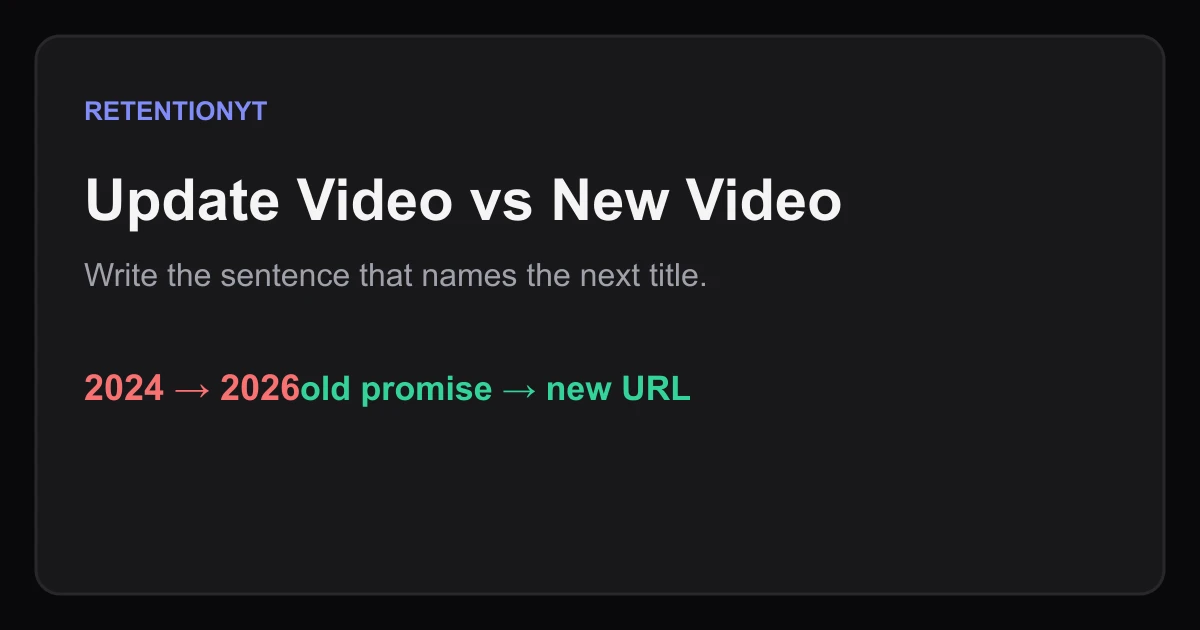
If your 2024 tutorial answers a different question in August 2026, make a new video instead of forcing a silent rewrite. If only a button moved, update the description or pin a comment. Use one decision: did the viewer’s promised result change, or did the path to that result merely move?
What Update Video vs New Video actually is (and what it is not)
Update Video vs New Video is a rescripting decision, not a YouTube Studio feature. You compare the old promise, the current interface, and the action the viewer needs to complete. A new URL is appropriate when the answer, workflow, or meaning of a key metric changed. A description update is appropriate when the lesson remains true and only a small detail moved.
Do not treat an old upload as replaceable source code. YouTube Help’s audience-retention guidance describes reports that show how different moments held viewers’ attention, while its performance page explains current view and engagement reporting. Those reports help you diagnose the existing lesson; they do not provide a clean “replace this video and keep all signals” button.
The 2026 view-count change is a source-backed date-specific event: the locked performance page says that beginning August 24, 2026, views are counted when a video starts to play across Shorts, long-form videos, and live streams. That changes how you explain the metric, not necessarily the whole tutorial. If the tutorial’s promise is “how views are counted,” record a new lesson. If the promise is “where to click in Studio,” a small update may be enough.
| Change you found | Best first move | Why |
|---|---|---|
| Promise or metric meaning changed | New video | The old answer can mislead viewers |
| Button or menu label moved | Description or pinned comment | The lesson remains substantially true |
| Minor wording or example is dated | Rarely overwrite; annotate | Preserve a clear history and redirect |
Where RetentionYT fits
Manual comparison works alone. RetentionYT can shorten the script-review loop, but it does not decide whether the viewer’s promised result changed.

Why this shows up in YouTube Studio
You open Studio because the decision starts with the published lesson, not with a blank script. SOURCE 1, Audience retention, says its reports show how well different moments held viewers’ attention and can compare a video with typical retention for similar-length videos. Use that evidence to locate where the old explanation loses clarity, but do not present a comparison line as a universal benchmark.
SOURCE 2, Understand your YouTube content performance, states that beginning August 24, 2026, views are counted when a video starts to play across formats. It also says the Content tab gives an overview of how viewers find and interact with content, and that the Videos section includes key metrics and key moments for audience retention. Those are the product facts behind this decision workflow.
The sources do not say that a new upload automatically wins, that an old video loses all signals, or that a description edit preserves every outcome. Therefore, this article makes a narrower claim: when the promise changed, a fresh lesson makes the answer explicit; when only a path moved, an annotation may be enough.
In Studio, open the old video, select Analytics, and read the reports your account shows. Note the title, date, promise, and the current interface path. Then write the viewer’s likely question today. The distance between those two sentences tells you whether you need a rescript or a small correction.

Worked example 1: the failure
Here is an illustrative failure. Your 2024 tutorial says that a view is counted only after a viewer stays for a particular threshold. On August 24, 2026, the locked performance source says views are counted when playback starts across formats. The old video now teaches a different metric meaning from the one the viewer needs.
Changing one description sentence does not solve the failure. A viewer hears the old rule and sees the example. Keep the old URL as context and point viewers to the new explanation.
Illustrative failure map: one old promise, one changed definition, one stale example, and zero seconds spent explaining the new rule. These are planning values for this example, not YouTube performance data.
| Illustrative failure measure | Before fix | Rejection reason |
|---|---|---|
| Promise matches current metric | no | Viewer receives an outdated answer |
| New explanation linked | no | Old URL has no clear bridge |
| Decision made | no | Creator edits around the problem |
Worked example 2: the fix
Keep the old video live and publish a focused new lesson about the changed view definition. In the old description, say what changed, date the note August 24, 2026, and link to the new video. Pin the same short explanation when the old upload still receives questions. The new video should use a title that states the current promise without pretending it is a minor patch.
A different illustrative case is a moved button. If the tutorial still teaches the right job and only the menu label moved, do not record a 14-minute remake. Rewrite the description with the current path, pin the correction, and add a short opening note if the old path would otherwise block the viewer. The lesson remains the same; the route changed.
This is the rare-overwrite rule. Preserve the old upload when it contains useful history or traffic, and use a new URL when the viewer needs a materially different answer. The decision is editorial and evidence-led; it is not a claim that YouTube grants or removes a particular signal when you publish.

How to check this in YouTube Studio (step by step)
First, write the old promise exactly as a viewer would have understood it in 2024. Do not summarize it as “old tutorial.” Write the outcome: what would the viewer know or do after watching? Then write the current outcome in one sentence and date the comparison.
Second, open Analytics for the old video. SOURCE 1 describes key moments for audience retention and typical retention comparisons; SOURCE 2 describes the Content tab and current performance metrics. Use the reports that are actually available to you, and record the report name rather than inventing a Studio path.
Third, classify the change. If the metric meaning, core workflow, or expected result changed, choose new video. If a button, label, or small navigation step moved while the result stayed true, choose a description update or pinned comment. If the evidence is mixed, make the smallest correction first and schedule a review.
Fourth, build the bridge. For a new video, add the new URL to the old description and pinned comment with a one-sentence explanation of what changed. For a small update, place the corrected path near the top of the description and pin it. Never use “click here for the latest” without naming the reason.
Fifth, check the package before publishing. The title, first 8 seconds, description, pinned comment, and link should all state the same current promise. After publishing, inspect the available Analytics reports again; do not infer success from a single early counter.

The trap
The trap is using the size of the interface change as the decision rule. A 12-pixel button shift can be operationally annoying but still leave the lesson true. A one-line definition change can be visually tiny and still invalidate the tutorial’s promise.
The second trap is deleting the old upload before you have a bridge. A new video does not need to erase the old context. Keep the old URL available, explain the change, and let the viewer choose the current lesson. Do not promise that the new upload will steal or recover views; measure what your reports show.
The final trap is treating a current view count as timeless evidence. SOURCE 2 explicitly dates the 2026 view-count change, so write the date in your update note. A dated correction is more useful than an undated claim that the platform “always” counted views one way.
The trap
The move

What to do in the next upload
Make the decision before you open the camera app. Write the old promise, the current promise, the date of the change, and the bridge a viewer will need. Keep the method manual so you can explain the choice even without signing up to RetentionYT.
- Write the old tutorial’s viewer promise in one sentence.
- Write the current viewer promise and date the comparison.
- Open the old video’s Analytics in Studio.
- Check the available retention and performance reports.
- Classify the change as promise, workflow, or path.
- Choose a new video when the promise or answer changed.
- Choose a description update when only a small path moved.
- Pin a concise correction when viewers may miss the description.
- Keep the old URL as context unless there is a separate removal reason.
- Link the old and new lessons with an explicit reason.
- Recheck the title, first 8 seconds, and links before publishing.
- Review current reports after the new lesson has data.
For a deeper script pass, use the related tool once after your manual comparison. For context on metric decisions, read related post 1 and related post 2. Use YouTube Studio to inspect what the published video actually reports.
Rescript when the viewer’s promised answer changed; annotate when only the route moved.
Frequently asked questions
- Should I remake old tutorials in 2026?
- Remake an old tutorial when the promise, workflow, or audience question has materially changed. If only a label or button moved, update the description or add a pinned comment instead. Use the current video’s Analytics to identify the mismatch, then decide whether the old URL still answers the question viewers are asking.
- Can I edit a published video's footage?
- A published video is not a draft you can reshoot in place. You can improve the surrounding package and point viewers to a new upload, but a major footage change needs a new video. Treat the old URL as a signpost: explain what changed, then link to the current lesson so viewers are not stranded.
- When is a pinned comment enough?
- A pinned comment is enough when the lesson is still accurate and the change is small, such as a moved button or a revised menu label. State the new location clearly and link to the relevant help page or new lesson. If the promise or core workflow changed, a comment alone is too easy to miss.
- Will a new video steal from the old?
- A new video can give the old video a useful handoff instead of competing with it. Keep the old URL live, explain why the new lesson exists, and link from the old description or a pinned comment. Do not promise that either upload will gain views; check your own reports after the new video has enough data.
- How do I link them?
- Use a clear bridge in both directions: the old video’s description or pinned comment points to the new lesson, while the new video can briefly explain that it replaces an older workflow when relevant. Use the exact title and URL, and tell viewers what changed. Never hide the update behind a vague “latest video” label.
- How do I apply “Update Video vs New Video” on my next upload?
- Write the old promise in one sentence, write the current promise in another, and compare them. If the answer changed, make a new video; if only a small interface detail moved, update the description or pin a comment. Record the decision, date, and link so the next review is based on evidence rather than memory.
- Where in YouTube Studio do I check “Update Video vs New Video”?
- Update Video vs New Video is a decision framework, not a named Studio report. In YouTube Studio, open the video’s Analytics and review the reports available to your account, including the key-moments and performance context described by YouTube Help. Use those reports to locate the mismatch; do not expect a button with this framework’s name.
- What is the most common mistake with “Update Video vs New Video”?
- The most common mistake is treating every interface change as a reason to record a full remake, or treating a changed promise as a tiny description edit. Compare the viewer’s expected result with the current lesson. If the answer itself changed, publish a new URL and make the old video a signpost instead of silently overwriting the decision.
Give your next script a second look
Paste a script into RetentionYT for suggestions on your hook, pacing, and structure. Choose the edits that serve your video, then check audience behavior in YouTube Analytics after publishing.
Get retention tips in your inbox
Occasional, practical emails on hooks, pacing, and retention. No spam.
Related posts
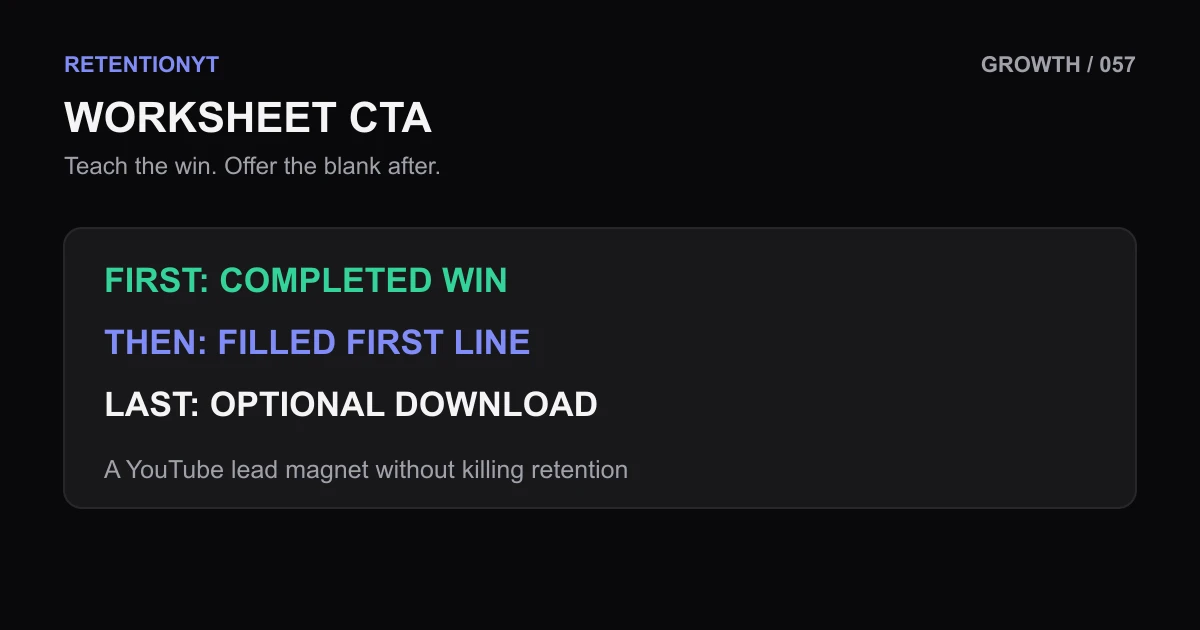
Worksheet CTA: Why It Should Come After the Win
Use a YouTube lead magnet without killing retention: teach one completed win first, then show the filled worksheet line before offering the blank PDF.
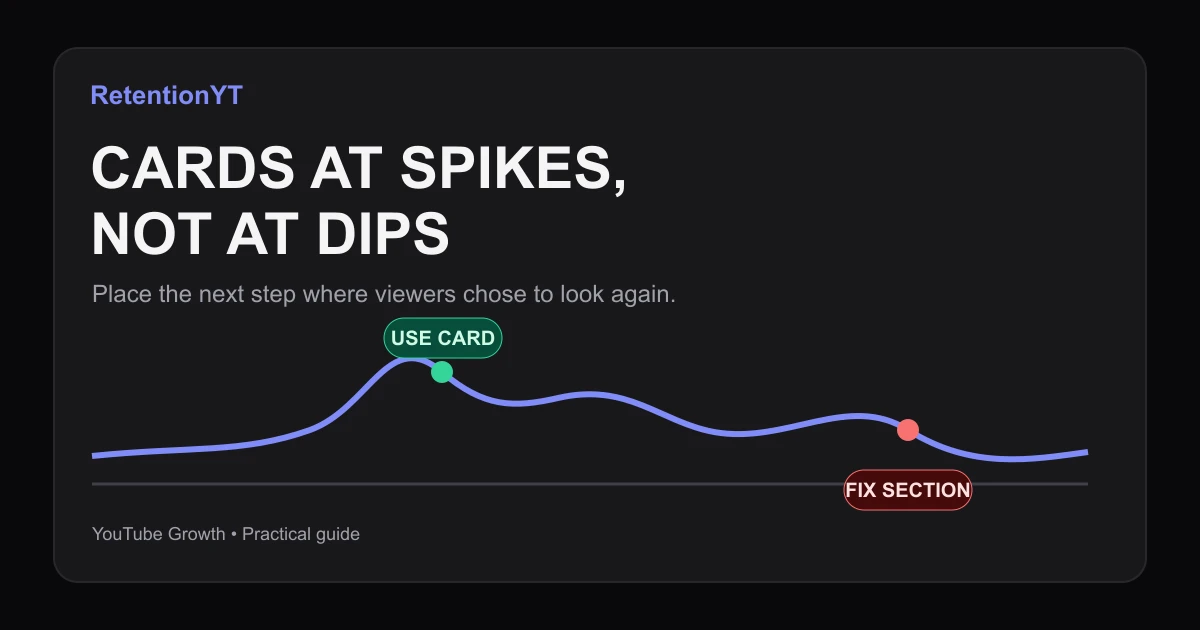
Cards at Spikes, Not at Dips
Learn when to place YouTube cards retention: use rewind spikes as demand signals, avoid dips, and follow a practical Studio workflow on your next upload.
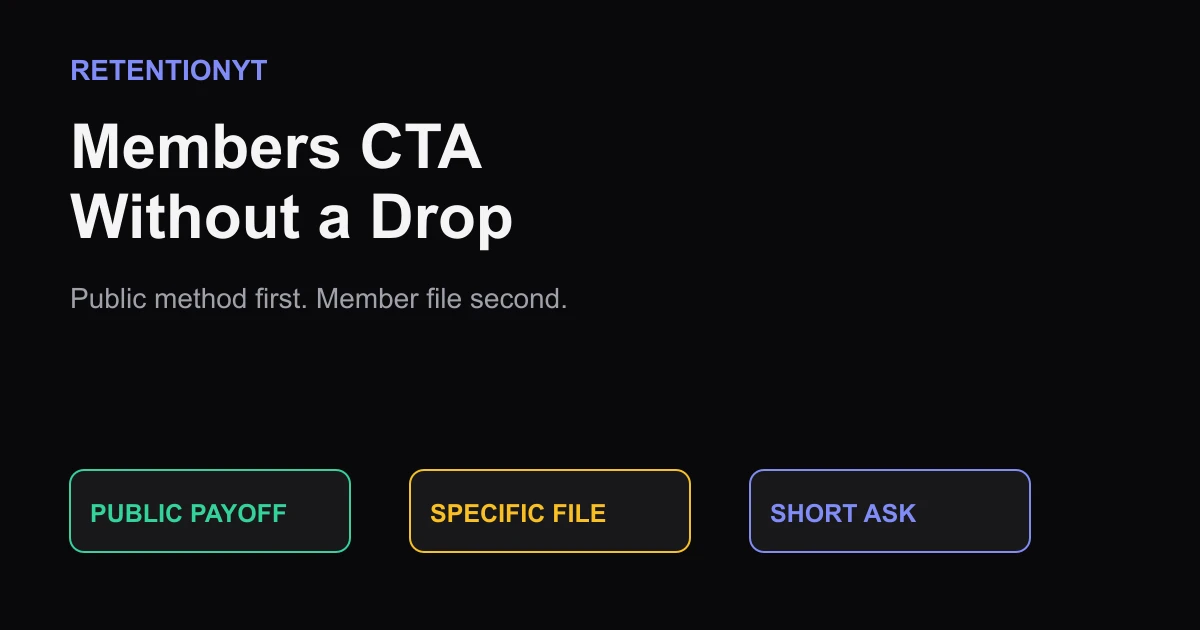
Members CTA Without a Drop
Place your YouTube membership ask after a complete public payoff, then offer a specific member-only file so viewers get the method without feeling held hostage.